Pages

2/10/2013

Make Windows 8 Sexier With These Background & Theme Tweaks


Make Windows 8 Sexier With These Background & Theme Tweaks

windows 8 background

Does your Windows 8 system look too bland with the default settings? You can customize it in a variety of ways, changing a variety of backgrounds and colors — whether on the Start screen, lock screen, or desktop. Your Windows 8 system can be a subdued interface with dark colors and muted backgrounds, a tableau of bright colors and colorful flowers, or anything in between.
Microsoft has omitted some customization settings – most notably for the Start screen – but there are third-party tools that can give us access to these settings. Just as with the missing Start menu, third-party utilities give us the options Microsoft didn’t.

Change The Start Screen Background & Colors

Windows 8’s start screen is customizable. If you don’t like the default Windows 8 background and colors, you can change them to something more to your liking. Just open the Settings charm (use the Ctrl+I shortcut to quickly open the Settings charm) and select Change PC settings. In the PC settings screen that appears, select the Personalize category, select Start screen, and choose a background image and color.
Windows 8 includes a number of different Start screen backgrounds and color schemes that can be mixed and matched – you can have everything from a solid-colored dark background to a bight pink background with flowers.


windows 8 background

Set a Custom Start Screen Background & Colors

While customizing your Start screen, you’ll notice that you can’t select a custom background or color scheme. You can only select the ones Microsoft included. Luckily, some third party tools have come to the rescue. However, bear in mind that they only work on Windows 8, not Windows RT (which can’t run non-Microsoft desktop applications).
The slickest, easiest utility to use is probably Stardock’s Decor8, from the same Stardock that created the popular Start8 start menu replacement for Windows 8. It’s free for 30 days, after which it will cost you $5 – just like Start8.
Decor8 allows you to set custom background images and color schemes for your Start screen, breaking free from Microsoft’s limitations and tweaking it to your liking. You can even have the background automatically change and customize other parts of the Start screen, such as the number of rows of tiles and styles of animations.


windows 8 background wallpaper


If you’re looking for a free alternative, you might want to try something like Windows 8 Start Screen Customizer, although it’s still in beta and isn’t as well tested – it may not be as polished and stable.

Change The Lock Screen Background

Windows 8′s lock screen appears when you start your computer, log out, or lock it. Unlike the start screen, the lock screen’s background image is completely customizable out-of-the-box.
From the same Personalize pane in the PC settings application above, select Lock screen and select a custom background image. You can use one of the preinstalled ones or click the Browse button and select your own background image. You can also customize the applications that show quick status alerts on the lock screen – particularly useful for Windows 8 tablets.


windows 8 background wallpaper

Customize Desktop Window Border Colors

By default, Windows 8 automatically chooses a solid window border and taskbar color based on the color of your desktop wallpaper. However, you can also choose a custom color that will be used instead..
To choose a window border color, right-click your desktop and select Personalize. Click the Color option at the bottom of the Personalization window and select your preferred color. You can tweak a selected color’s intensity to get it just how you like it.


windows 8 background wallpaper


As with Windows 7,  you can also choose a custom desktop background – even set up a slideshow of desktop backgrounds – from the Personalization window.

Set Custom Desktop Window Border Colors

If you want to set a window border color that isn’t mentioned in this list, try Aero8Tuner. It allows you to select any color for your window borders, even ones that Microsoft didn’t provide in the list of colors you can choose.


windows 8 background


For more information about Windows 8, be sure to download our Windows 8 keyboard shortcuts cheat sheet and full guide to Windows 8!
How have you customized Windows 8′s interface to your liking? Leave a comment and share your favorite tips and tricks.

Windows Live Essentials For Windows 8


Windows Live Essentials For Windows 8 – What You Need To Know

, by Chris Hoffman

Microsoft is in the process of phasing out Windows Essentials, formerly known as Windows Live Essentials. Microsoft has included Modern-style replacements for many of the Essentials applications in Windows 8 – email, calendaring, contacts, messaging, photo management, and cloud file storage are all built in. However, some Windows Live Essentials applications have no Modern equivalent, and you may want to the desktop versions of some applications.
Microsoft has come full-circle – after including many of the Windows Live Essentials apps in Windows Vista, they were removed in Windows 7 and available as a separate installer so that Windows 7 could be a more lightweight, minimal operating system. They’re now being integrated back into Windows 8 by default.

New Windows 8 Apps

Microsoft wants the pre-installed Windows 8 apps to take the place of the older, desktop-based Windows Live applications. You’ll find the following replacements pre-installed on Windows 8:
  • Mail: Microsoft’s Mail application connects to Outlook.com, Hotmail, Gmail, Exchange, and IMAP accounts. It takes the place of Windows Live Mail.
  • Calendar: Windows Live Mail included integrated calendar support, but calendaring is now available in a separate application. It can sync with the calendars linked to your Microsoft account, Google Calendar, and other calendar services.
  • People: Windows Live Mail’s address book is now the People application. In addition to being an address book, it can connect to services like Facebook, LinkedIn, and Twitter to bring together your contacts in one place.
  • Messaging: The messaging application works with Microsoft’s Messenger and Facebook. It takes the place of Windows Live Messenger.
  • Photos: The Photos application takes the place of the Windows Live Photo Gallery. It can view photos on your PC or SkyDrive, import photos from a camera, and access online photo services like Flickr or Facebook.
  • SkyDrive: SkyDrive takes the place of Windows Live Mesh as Microsoft’s new online file storage service. Windows 8 includes a Modern app for viewing and managing your SkyDrive files.

windows live essentials
  • Family Safety: The Family Safety application has been replaced by integrated parental controls in Windows 8, which are also called Family Safety. Access Family Safety from the control panel to set time limits, restrict access to websites, and get reports on your kids’ computer usage.
live essentials


You may also want to install Microsoft’s Skype application for Windows 8 from the Windows Store. Skype will soon replace Windows Live Messenger entirely.
However, if you want to edit movies, write blog posts, or sync files on the desktop, you’ll still need some of the classic Windows Live Essentials applications.

Windows Essentials For The Desktop

The Windows Essentials installer package is still available for Windows 8. It will download and install the familiar Windows Essentials desktop applications on your computer, although many applications – such as the Bing Bar, Outlook Connector, Messenger Companion, Windows Live Mesh (replaced by SkyDrive), and Family Safety (Windows 8 has integrated parental controls) have been removed.
Microsoft is de-emphasizing these applications, although several have no Modern equivalent yet. You may want to install:
  • SkyDrive (desktop): Windows 8 only comes with a Modern-style SkyDrive app that allows you to view your SkyDrive and upload files in the new, Modern UI. If you use SkyDrive and want to sync files to your computer and access them in a folder – just like Dropbox – you’ll need the SkyDrive desktop application. It’s available through the Windows Essentials installer, although you can also download the SkyDrive desktop app separately.
  • Windows Movie Maker: Microsoft’s easy-to-use movie editing application still has no Modern equivalent. The desktop application works fine on Windows 8 and is available from here, along with a photo gallery application that works on the desktop.
  • Windows Live Writer: Windows Live Writer is a much-loved blogging application. It still has no equivalent in the new Windows 8 interface. If you want Windows Live Writer, you’ll need to install it from here.
windows live essentials


You probably don’t want to install:
  • Windows Live Mail: Don’t expect Microsoft to focus much attention on this program going forward – Microsoft would rather you use the Mail application in the Modern interface, the full Microsoft Outlook on the desktop, or their Outlook.com web interface. If you still like Windows Live Mail, you can install it and continue to use it anyway.
  • Windows Live Messenger: There’s not much point in installing Messenger – Microsoft’s Messenger service will be shut down on March 15, 2013, after which this program will no longer be available. Existing accounts will be migrated to Skype, so you’ll want to install the Skype desktop app if you’d rather not use the Modern app.
skype-for-desktop-on-windows-8


Want more information about Windows 8? Download Getting Started: Your Guide To Windows 8.
Do you still use Windows Live Essentials on Windows 8, or have you found better Windows 8-style app replacements to them? Leave a comment and let us know!

1/17/2013

NYT: Three Windows 8 Features Worth Celebrating

January 17, 2013, 2:44 pm

Three Windows 8 Features Worth Celebrating

You already know my overall opinion of Windows 8: that it's two very good operating systems - one for touch screens, one for mouse and keyboard - idiotically superimposed on each other. You wind up with duplicate everything: two Web browsers, two help systems, two search features, two control panels (actually three, but never mind). It's very confusing.
But for the last few weeks, I've been up to my neck in writing a how-to book on Windows 8, and that means mucking around in its deepest, darkest corners. That means learning its idiosyncrasies and quirks. That means getting to know its most embarrassing lapses and its most unsung brilliance.
Maybe Microsoft will somehow fix what's wrong with Windows 8. Maybe people will get used to the duality. (With the addition of free programs like Classic Shell, which restores the Start menu, you can almost get away with using only the desktop mode on your PC, as before. Almost.)
In the meantime, I thought I'd share three completely overlooked gems that I've unearthed in my explorations.


Xbox Music. Don't be confused - in Windows 8, the term Xbox has nothing to do with the game console. It's now just a generic term that Microsoft puts on its online stores.
Anyway, Xbox Music is a completely great music service. It combines elements of Pandora, in that it can play endless free music in a style you choose; Spotify, in that you can listen to any song or any album or any performer, on command, free; and iTunes, in that you can buy songs to download. It's a Windows 8 exclusive; it doesn't work on Windows 7. And it's free.
The free version has occasional interruptions in the form of audio/video ads. Music streaming is free and unlimited for the first six months; after that, you can listen free for 10 hours a month. If you're willing to pay $10 a month (or $100 a year), you can get an Xbox Music Pass, which lets you (a) also listen on a Windows 8 phone and an Xbox 360 (provided you also have a Gold membership), (b) download songs for offline listening, (c) sync your playlists across multiple gadgets, and (d) eliminate the ads.
When you're listening to one type of music, Pandora-style, you can click the Skip button to pass over a song you don't care for. In theory, the free version offers only a limited number of skips a month, but Microsoft has confirmed that, for now, it's still unlimited.


Bing Magazines. In TileWorld (my name for the second operating system, the full-screen, colorful, tappable tiles), you get a handful of brilliantly executed, full-screen, perpetually self-updating "magazines" for news, sports, finance and travel.
This is a fantastic feature. Each, behind the scenes, is simply grabbing articles from hundreds of big-name news Web sites. For example, the News magazine gets its articles and photos from The New York Times, The Wall Street Journal, The New Yorker, CNN, Huffington Post, and so on.
But each re-formats everything into one uniform, attractive, screen-friendly design. No hard-to-read color schemes or ugly fonts. No blinking ads, banners or obnoxious animations.
They all work essentially alike. You open the app (Internet connection required). You see a huge cover photo. Tap or click it to read the associated article.
Or scroll horizontally to see headlines and teaser blurbs for other articles.
Each magazine is customizable; you pick the sports league to follow, the stocks you track, the news topics or news sources you prefer. The Travel magazine is integrated with Bing Travel, so you can actually book hotels and flights on the spot. Flipboard is an obvious predecessor, but it's nice that these magazines are built right in and ready to go.


Narrator. If you're blind, computers are hard enough to use without the introduction of touch screens. In Windows 8, without any fanfare whatsoever, Microsoft has followed in the footsteps of Apple's VoiceOver technology. It has turned Narrator, a weird, sad old feature that would read your error messages to you out loud, into a full-blown screen reader.
Those who are blind or have limited sight can use Narrator to describe every item on the screen, either in TileWorld or the desktop. It can describe the layout of a Web page, and it makes little sounds to confirm that you've performed a touch-screen gesture correctly.
Even if you're not blind, Narrator is still handy; it can read your e-mail back to you, or read Web articles as you're getting dressed in the morning.
When you open Narrator, you wind up at its Settings dialogue box  - and the voice of Microsoft David (no relation) starts talking, reading everything on the screen.
Like VoiceOver, Narrator takes a lot of time and patience to master; it's almost like another operating system unto itself.
But the basics are easy enough: on a touch screen, drag your finger around the screen; Narrator speaks everything you touch, so that you can get a feel for the layout of things. You can also tap to hear a single item identified. When Narrator is running, it takes two taps to open something instead of one.
To see the master cheat sheet of touch gestures in Narrator (and hear it read to you), tap the screen three times with four fingers.
If you have a keyboard, the Caps Lock key becomes specially dedicated to Narrator. Press Caps Lock and V, for example, to make Narrator repeat whatever it just said. Caps Lock and the plus or minus sign makes the voice speed up or slow down. Press Caps Lock and Esc to exit Narrator.
So yes, there's a lot of good in Windows 8, and a lot that's getting no press. Here's to the unsung engineers who came up with this stuff - and to the hope that Windows 8's split-personality problem somehow improves.

Source: http://pogue.blogs.nytimes.com/2013/01/17/three-windows-8-features-worth-celebrating/?ref=personaltechemail&nl=technology&emc=edit_ct_20130117

1/01/2013

Ten 3rd Party Alternatives for missing Win8 apps

pcworld.com - Ten 3rd Party Alternatives for missing Windows 8 applications-

A desperate app selection calls for desperate measures


The Windows Store has grown significantly since the dark and dreary pre-launch days of Windows 8, more than quadrupling its catalog size since October 26th. Don't let that 20,000 app number fool you, though. Quantity is not the same as quality, and the platform still suffers from hit-or-miss availability when it comes to blockbuster apps. You’ll find modern UI offerings for some of the big-name apps from other platforms in the Windows Store—including Netflix, Hulu, Skype, and Kindle—but you’re bound to hit a brick wall when looking for many other must-have titles, including Pandora, Twitter, and Facebook.
Luckily, third-party developers have stepped in with their own versions of your favorite missing apps. We've sifted through the Windows Store to identify the best Band-aids for the most painful Windows Store no-shows.


PRadio


Xbox Music is nice and all, but millions of people have millions of hours invested in finely-tuned Pandora playlists. Pandora doesn't have a Windows 8 app, but PRadio is about as good as a replacement gets. While the app’s interface doesn’t look anything like Pandora’s web app, it does provide immediate access to your radio stations (complete with thumbs-up and -down capabilities for further tune tweaking) and Pandora’s massive library of free streaming music.
PRadio behaves exactly as a modern streaming music app should, integrating with the search charm for easy music searching and playing music in the background when you switch to another app. Like all Windows 8 apps, it supports Snap. Snapped mode gives you playback controls at the side of your screen while using other apps.


The People app


Developers have built several third-party Windows 8 Twitter clients, but you can’t really use any of them. Twitter restricts third-party clients to a maximum of 100,000 users and the Twitter apps for Windows 8 have hit this limit—unsurprising, since the official Twitter client for Windows 8 isn’t out yet.
Unless you were lucky enough to grab Metrotwit or Tweetro early, your best bet is the included People app. It’s not the best Twitter client, but hey, at least it allows you to send and view tweets. Alternatively, the Tweetro app recently reappeared in the Windows Store after a brief hiatus, but now it carries a $9.99 price tag that seems steep when you consider an official Twitter app is slated to show up in the next few months.


MINE for Facebook


Unlike Twitter, Facebook has said it has no plans to build a Windows 8 app. The native People and Messaging apps offer some basic Facebook integration, but they're no substitute for a full-blown Facebook app. MINE for Facebook is the best alternative app available at the moment, offering a customizable view of your Facebook feed, notifications, and your friends’ profile pages. You can also update your status, leave comments, share links and pictures, and more.
It doesn’t replace the Facebook website entirely, though—you’ll still have to use the Facebook website to milk cows in FarmVille.


PrimeTube


YouTube works just fine in Internet Explorer 10, but if dedicated apps are more your style, you should install PrimeTube. PrimeTube presents YouTube in an interface that feels right at home on Windows 8, allowing you to browse YouTube in that tile-tastic modern style.
PrimeTube isn’t just a YouTube player, though. The app allows you to log into your YouTube account and view your subscriptions, manage playlists, and leave comments. PrimeTube also continues playing YouTube videos in the background—something that can’t be done with Internet Explorer. It’s perfect for music and speech-heavy vids.


Movie Guide


Movie Guide takes the place of IMDB, which is M.I.A. on Windows 8. The app lets you browse movies and watch trailers, dividing its selection between in-theater movies, older classics, and upcoming flicks.
While Movie Guide appears to be fairly light on content when you first launch it, it actually has a very comprehensive database of 69,000 titles and tons of actors and actresses. I like to use the database for movie discovery: Find your favorite movie with the Search charm to browse a list of similar movies, or tap the movie's director to view a list of other flicks they’ve directed. Once you’ve found a movie you want to watch, you can add it to your watchlist so you’ll remember it later.


G Maps


Bing Maps is decent, but lacks drill-down features like the handy-dandy public transit directions found in Google Maps. Don't think that's a big deal? Witness the uproar over Apple's switch to an in-house Maps app on the iPhone.
The Windows Store offers two unofficial Google Maps apps, confusingly named G Maps and gMaps. Both apps support the standard Google Maps features, including directions for driving, public transit, walking, and cycling; location search; layers; and satellite maps. Each can also track your location via GPS if your tablet has a GPS chip.
Of the two, G Maps has much smoother transitions while zooming, though it does pester you with ads. Hey, the developer has to make his money before a real Google Maps app appears, right?


Laterark


Tablets are great for reading, whether you’re relaxing on the couch or sitting in a coffee shop. Services like Pocket—formerly Read It Later—and Instapaper make this even easier, allowing you to save intriguing web articles you stumble across for later perusal. Neither service offers a Windows 8 app, but that doesn't mean you're bereft of delayed gratification tools.
Latermark integrates with your Pocket account, delivering your saved articles in a touch-friendly, reading-optimized layout that's optimized for tablets but still purdy on a desktop monitor. It sure beats squinting at small fonts on a website. One downside: Latermark doesn’t automatically synchronize articles for offline reading, although articles you open in-app are cached for Internet-free reading.


IM+


Windows 8’s Messaging app works with Facebook and Windows Live Messenger accounts, but what if you have friends who use other chat networks? You don’t have to kick your old friends to the curb when you upgrade to Windows 8—just use IM+.
IM+ is completely free and supports a wide variety of other chat networks, including popular services like Google Talk, AIM, Facebook, Jabber, ICQ, and Yahoo Messenger. In other words, IM+ fills the massive gaps left gaping by Windows 8’s native Messaging app. You can even have it send you a push notification when one of your buddies reaches out to ping you.


News Bento


The News app included with Windows 8 is primarily focused on—you guessed it—news. To see the latest content from your favorite tech blogs (like PCWorld!) and other sites in a beautiful, Flipboard-style digital magazine, use News Bento.
News Bento lets you define categories of content you’re interested in to hone in on specific types of articles. The app includes a preset directory of many of the top news sites around, though you can also subscribe to non-included sites, add any RSS feed from the web, or link the app to your Google Reader account.


Milligram


Windows 8 isn't just missing Facebook and Twitter; Instagram is a no-show on Microsoft's new platform, too. Fortunately, there's a non-official app for that. Milligram gives you access to the latest content on Instagram, displaying the latest popular and trending photos. Want a more personal touch? You can also link to an Instagram account to view the latest food photos from the hipsters you’re following.
You can like other people's photos, save them to your device, and even leave comments, but you can’t actually upload photos to the picture-friendly social service. That may be a blessing in disguise, though—have you ever seen someone taking a photo with a tablet? It's ridiculous.


@chrisbhoffman  Dec 27, 2012 3:00 AM


Source:  http://www.pcworld.com/article/2018608/10-third-party-alternatives-for-missing-windows-8-apps.html


Missing Windows 8 Applications

What's Missing From Windows 8 , 06-27-12, by Chris Hoffman.

Windows 8 has seen the removal of many features that have been key to Windows over the years, including the Start button, Start menu, and Windows Aero. We tend to focus on the new features added in new versions of software like Windows 8, but the removal of features can be equally important – if not more so.
This list isn’t exhaustive, as many less-important features have also been removed (goodbye, Windows Briefcase). What’s more, Microsoft is still removing features as big as Windows Aero, so there’s no knowing what other features will be pulled before Windows 8 ends up on store shelves.

Traditional Start Button & Start Menu

The Start button and Start menu have been key Windows features since Windows 95, but are now gone. Windows 8 has no Start button, nor does it have the traditional Start menu. Instead, you mouse over the bottom-left corner of the screen to reveal the hidden Start button.


missing from windows 8


The Metro start screen is your new, full-screen Start menu. You can still start typing an application’s name to search for and launch it, although the transition can be jarring and confusing for Windows users accustomed to the traditional Start menu and desktop. Unfortunately, the search results on the Metro start screen aren’t unified – Windows only searches applications by default. To launch a file or control panel applet, you’ll have to type its name and select a different category on the search screen.


You’ll also be at this screen when you log in – there’s no boot-to-desktop option. There are some tricks – you can put a Show Desktop shortcut in your startup programs, but you’ll still see this screen before the desktop loads.


whats missing in windows 8

Windows Aero, Transparent Glass, & Flip 3D

Windows Aero, the graphical centerpiece of Windows Vista and Windows 7, is being completely removed. All preview versions of Windows 8 contain Windows Aero – but it’s been removed internally and won’t appear in the final version. If you’re not sure what Windows Aero is, here’s how Microsoft explains it:
“Windows Aero is the premium visual experience of Windows Vista. It features a translucent glass design with subtle window animations and new window colors.” (Source)
Evidently, Microsoft no longer considers Aero a premium visual experience. All those animations and transparent glass effects are going away and we’ll be seeing flat colors on the desktop. This also means that the gaudy Flip 3D will be going away – if you’re using a Windows 7 or Vista computer to read this, you can press WinKey+Tab to view Flip 3D right now.
Flip 3D was always a glorified tech demo that looked cool the first time you saw it, but was used by almost no one because it was less useful than the traditional Alt-Tab program switcher.


whats missing in windows 8

DVD Playback & Windows Media Center

Many Windows 8 computers will come without DVD drives – which are being used less with the rise of Netflix and other media-streaming services – and including DVD playback costs money, so Microsoft will be removing the integrated DVD playback support from Windows 8. If you buy a computer with a DVD drive, it’s up to the computer’s manufacturer to include licensed DVD software (and many already do). You can always use VLC to play DVDs, anyway. Unsurprisingly, Windows DVD Maker is also being removed.
Windows Media Center is also being removed from every Windows version (even the Pro one), since it’s used by so few people. You can give Microsoft a few dollars using the Add Features to Windows 8 panel to activate Windows Media Center, if you like – this covers the cost of the codecs Windows Media Center includes.


whats missing in windows 8

Previous Versions & Windows Backup and Restore

The Previous Versions feature, activated in Windows 7 by default, has been removed. It allows you to restore previous versions of files from their Properties window. Windows Backup and Restore is also being deprecated.
The new File History feature replaces both Previous Versions and Windows Backup and Restore. Unlike Previous Versions, File History isn’t enabled by default. File History is also designed to work with files in your libraries and on your desktop – as well as your contacts and favorites. It’s much more limited than the Previous Versions feature, which worked for any file in and folder.


missing from windows 8

Windows Update Desktop Notifications

Do you have Windows set to ask you before downloading or installing updates? On current versions of Windows, Windows Update appears as a system tray icon and a notification balloon informs you that updates are available. On Windows 8, you can still tell Windows to notify you before downloading updates – but these update notifications no longer appear on the desktop. All Windows-Update-related notifications appear on the login and lock screens – so you might not even see them if you automatically log into your computer.


windows-8-update-notifications-on-login-screen


Will you miss these features or have you noticed another significant feature that’s been removed in Windows 8? Leave a comment and let us know.

Source: http://www.makeuseof.com/tag/missing-windows-8/

12/17/2012

5 Best Music Players (LifeHacker.com)

Five Best Desktop Music Players

The best desktop audio players organize your playlists, help you keep your massive music collection easy to search, and even sync with mobile players, among other things, but which ones excel in all of those areas? This week we're going to take a look at five of the best desktop audio players, based on your nominations.


Earlier in the week, we asked you which desktop music players you thought were the best. You responded with way more apps than we could include in the top five, so we tallied up your votes and picked out the five programs most of you thought were the best.


The poll is closed and the votes are counted! To see which desktop music player you decided was the best, head over to our weekly hive five followup post to see and discuss the winner!

Five Best Desktop Music Players

Foobar2000 (Windows)

Foobar2000 is probably the most customizable and flexible music player in the roundup. It's completely free, plays just about anything you throw at it, supports gapless playback, features tons of customizable keyboard shortcuts so you can keep the music playing without taking your hands off the keyboard, and even keeps your music library neatly organized. Plus, Foobar2000 allows developers to build plug-ins and add-ons for it, so there are dozens of components you can download to extend its feature set so it works just the way you like. Even with those components installed, Foobar2000 is super-lightweight and easy on system resources.


Five Best Desktop Music Players

MediaMonkey (Windows)

If you're looking for a jukebox that plays your audio files but also does a lot to keep your music and media organized, MediaMonkey is for you. MediaMonkey is a podcast manager, CD ripper, music player, tag-and-rename organizer, audiobook player, and portable device syncing tool all rolled into one. The app will even look up tags, album art, and other song information for you automatically while you're not looking, seek out duplicate songs and tags, and more, all for the low price of absolutely free (There's a $25 "Gold" version, but the free version is enough for most users.) It's not the prettiest app, but if you're obsessive about the cleanliness of your music collection, you can't go wrong here.


Five Best Desktop Music Players

Winamp (Windows/Mac)

Winamp has been "whipping the llama's ass" for over 15 years now, and even though recent releases have really shined on Android, the Windows desktop player still rocks. It's completely skinnable, incredibly customizable, pretty fast, and completely free (there's a $20 pro versions, but the free version will work for most users.) You can use Winamp to rip CDs, play video as well as music, sync your music with your mobile device (wirelessly, if you use Android), and features its own podcast and music directory that lets you subscribe to podcasts, find new artists, and download music right through the app. For all of those extended features though, WInamp's basics are where it shines: it's just a killer music player. Mac users can get in on the action with Winamp for Mac Sync, which allows you to sync and listen to the music on your Android device and import iTunes playlists.


Five Best Desktop Music Players

iTunes (Windows/Mac)

Love it or love to hate it, iTunes is one of the most popular music players in the world, and for good reason—it offers a great music store, syncing for Apple-branded mobile devices, a podcast manager, and a fully-featured jukebox all rolled into the same app. Mac users are essentially stuck with iTunes—it's the most functional music player in OS X, but iTunes is notoriously difficult on system resources in Windows (not to mention it installs a ton of bloat by default), but it's still the first choice for many people. Plus, it's completely free. Combined with iCloud and iTunes Match, and you have a desktop player with some pretty powerful wireless cloud features that help you keep your music playing on the go. Many of you pointed out that you've had your fill of more complicated apps, and you settled on iTunes because it's easy, straight forward, and gets the job done (or, you have an iOS device, and have it installed anyway.)


Five Best Desktop Music Players

MusicBee (Windows)

Fast, lightweight, and free, MusicBee earned high praise from many of you for being easy on your Windows system, pretty attractive, and a great tool to not just listen to your music but tag, organize, and download information about your songs from internet sources, notably Last.fm (including play counts and loved tracks.) Add your own tags and organize your collection, use the app to find duplicate tracks and tags, MusicBee also winds points for supporting tons of different file types and formats, making it easy to rip CDs and sync playlists with your mobile devices, and more.


Now that you've seen the top five, it's time to put them to an all out vote to decide the winner.

What's The Best Desktop Music Player? (Poll Closed)


Total Votes: 11,307
 

Honorable mentions this week go out to Spotify, which is as great desktop a music player for music you've collected locally as it is a solid streaming music player and service. Also worth mentioning is the Zune player, which many of you praised for its great-looking interface, access to the Zune Marketplace, a Smart DJ feature that blows other apps out of the water, and more. Both options were only a few votes shy of the top five.
Have something to say about one of the contenders? Want to make the case for your personal favorite, even if it wasn't included in the list? Remember, the top five are based on your most popular nominations from the call for contenders thread from earlier in the week. Make your case for your favorite—or alternative—in the discussions below.
The Hive Five is based on reader nominations. As with most Hive Five posts, if your favorite was left out, it's not because we hate it—it's because it didn't get the nominations required in the call for contenders post to make the top five. We understand it's a bit of a popularity contest, but if you have a favorite, we want to hear about it. Have a suggestion for the Hive Five? Send us an email at tips+hivefive@lifehacker.com!

Source: http://lifehacker.com/5937787/five-best-desktop-music-players

Fix Windows 8’s Biggest Annoyances (LifeHacker.com)

How to Fix Windows 8’s Biggest Annoyances (and Make It More Like Windows 7)

Whitson Gordon

Windows 8 has some awesome new features, but it also has its fair share of annoyances. Here's how to fix all of those problems, from bringing back missing features like the Start menu to fixing new problems like a dumbed-down Windows Explorer.
Look, we like Windows 8. It has some really cool stuff going for it, and most of the complaints surrounding it are misguided. However, there are a few annoyances that really need fixing. Instead of sticking with Windows 7 and missing out on Windows 8's improvements, we're going to show you how to get the best of both worlds.


Bring Back the Start Menu

The new Start screen isn't all that bad, but if you want the comfort of your old Start menu, it's really easy to bring back. Start8 is our favorite Start menu replacement, bringing a customizable start menu that fits in really well with Windows 8's new features and aesthetic. It's $5, but it's well worth the price and insanely easy to set up.


Alternatively, you can use the free Classic Shell replacement, which is a tad more complicated but also more configurable than Start8. You have a lot more control over what your Start menu looks like, and can even tweak how the Search box works. When you install, you'll have the choice of installing just the Start menu or installing add-ons for Windows Explorer, Internet Explorer, and other programs too (more about this in a bit).


Get Rid of the Start Screen, Hot Corners, and More

How to Fix Windows 8's Biggest Annoyances (and Make It More Like Windows 7)

If you really, really, really hate the tiled interface, you can get rid of it entirely with the aforementioned Classic Shell. Right-click on your Start menu and head into the settings. Under the "Windows 8 Settings" tab, you can check a box to skip the Start screen at login, as well as disable the hot corners if they trip you up. Start8 will also let you bypass the start screen, though it can't disable anything else.


If you're using Start8 instead of Classic Shell but want to disable the other "Metro" features, you can do so with a $5 program called RetroUI. It's simple: you can choose to bypass the Windows 8 Start screen after login, bypass the Start screen after locking your computer, or go all-out and get rid of everything: the Start screen, the Charms bar, and hot corners. Make sure you install Start8 first, or you'll have a lot of trouble opening programs and shutting down your computer since you won't have any of those functions available.
You can also disable the lock screen using Group Policy editor, if you so desire.

Customize the Ribbon-ified Windows Explorer

The new Windows Explorer has some cool features, but not everyone's a fan of the Ribbon interface. If that sounds like you, you have a few options for improving Explorer. Classic Shell adds a new toolbar to Windows Explorer with small, simple buttons that you can customize to your heart's content. It isn't quite the same as having the old dropdown menus, but it's much simpler than the new Ribbon interface, and lets you add only the functions you'll actually use, which is nice. If you don't see it after installing Classic Shell, head to View > Options, click the Classic Explorer Bar to enable it, then click the seashell icon in the new toolbar to customize it.


However, if you prefer a more traditional file explorer with dropdown menus, you're better off with a full Explorer replacement like Xplorer2. Not only will it give you all your advanced menus back, but you'll get tabs, two-pane browsing, tons of keyboard shortcuts, and a fantastic search feature. It won't be quite as pretty as the new Windows Explorer, but if you long for traditional menus rather than the new Ribbon, this is your best bet.

Play DVDs for Free

How to Fix Windows 8's Biggest Annoyances (and Make It More Like Windows 7)

Bad news, movie buffs: DVD playback is gone in Windows 8. Even if you download the currently-free Windows Media Center, it'll only allow you to play DVDs in Media Center—not in regular desktop programs like Windows Media Player.
If you want to play DVDs in Windows Media Player, it directs you to the Windows Store where you can buy an add-on for DVD support. Unless you really want to use WMP, don't waste your money—a program like VLC will play DVDs for free. Download it, install it, and forget about paying for DVD playback.

Bring Back the Confirmation Box When Deleting Files


In Windows 8, when you delete a file, it no longer asks you whether you're sure—it just sends the file right to the Recycle Bin. This was an option in Windows 7 as well, but it wasn't the default—and if you'd rather have that extra safety net, you can easily bring the confirmation dialog back. Just right-click on the Recycle Bin, choose Properties, and check the "Display Delete Confirmation Dialog" box.

Show the Desktop with a Hidden Button

How to Fix Windows 8's Biggest Annoyances (and Make It More Like Windows 7)

Remember Aero Peek, the feature that let you hover over the edge of the taskbar to show your desktop? That's still around in Windows 8, but you have to enable it first. Right-click on the taskbar, choose Properties, and under the Taskbar tab check "Use Peek to Preview the Desktop." You won't see the button at the right edge of the taskbar like you did in Windows 7, but it's there—just hover your mouse over the area right of the clock and your windows will turn invisible again. You can also click this area to show the desktop instead of just peeking at it.

Replace Flip3D so You Can See Your Open Windows


Flip3D is also gone in Windows 8, but let's be honest: it wasn't that good to begin with. It was a nice piece of eye candy, but it wasn't exactly the most efficient way to see your open windows. There isn't a true replacement for Flip3D, but you can download a few programs that serve a similar purpose. Previously mentioned SmartFlip puts your windows in a wheel, letting you flip through them with whatever hotkey you want. Alternatively, you can download something like Switcher, which is more like OS X's Exposé, spreading your windows out into a grid when you press the desired hotkey. They won't bring back the eye candy of Flip3D, but they will serve the same purpose, and probably do it better. Title image remixed from Yuri Arcurs (Shutterstock).

Source: http://lifehacker.com/5955755/how-to-fix-windows-8s-biggest-annoyances-and-make-it-more-like-windows-7

12/16/2012

PCWorld: 11 winning alternatives to Windows 8's built-in apps


Windows 8 comes preloaded with plenty of apps for basic productivity and entertainment, but they're not necessarily the best you can do. We've already mentioned the apps you should download first, but now we want to share some third-party apps that you might like more than what Microsoft includes in its basic Windows 8 installation.
None of the following apps is perfect, but the same holds true for the apps built directly into Windows 8—hence the point of this article in the first place.

People

Part contacts list, part social media hub, Microsoft's People app is a central bucket for all the personal associations you make via email, Facebook, LinkedIn, and Twitter. Although this built-in app shares Facebook and Twitter updates, it's confusing in the way it jumbles together all your services.
Likewise, People is definitely not a worthy Twitter client. And no worthy Twitter clients are available in the Windows Store yet. An official Twitter app is in the works; but until it arrives, we'll all have to make do with third-party alternatives.
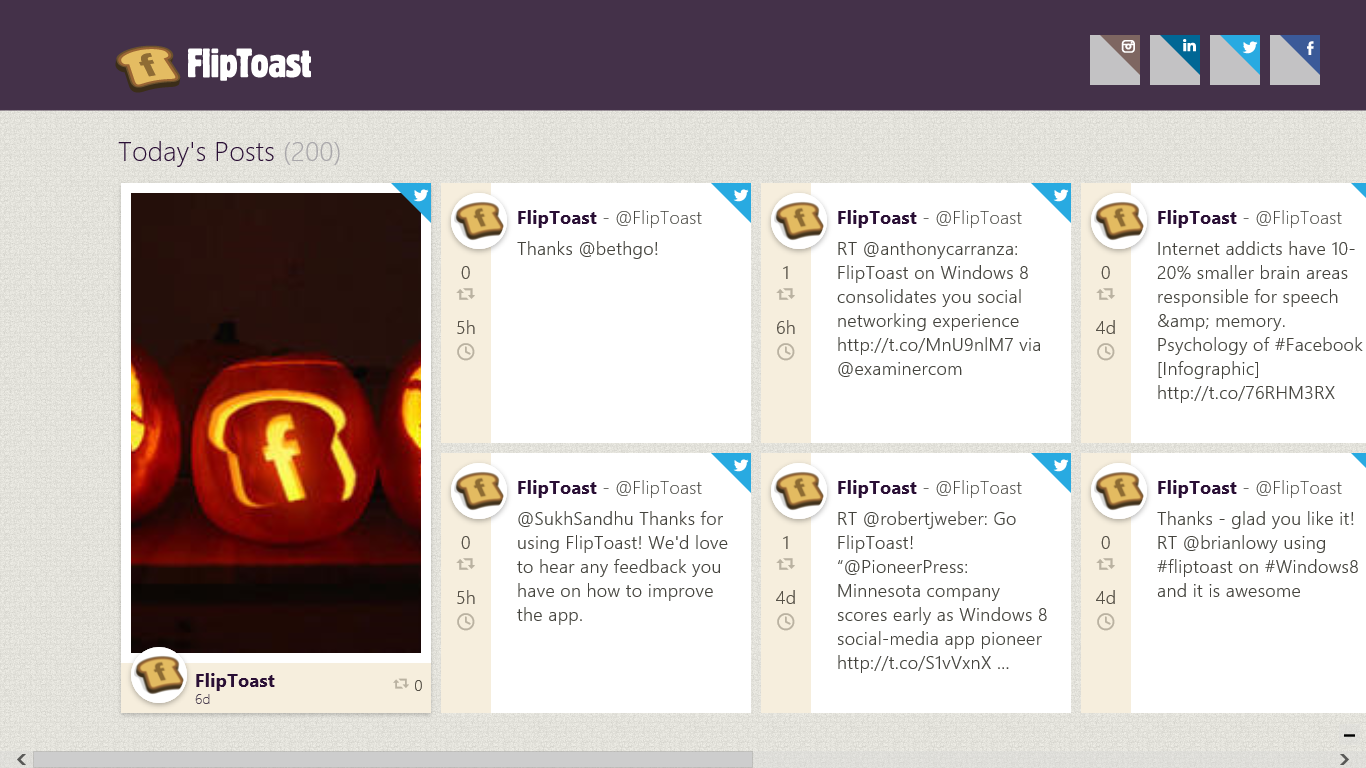
Luckily, we have FlipToast, an app that commingles Facebook, Instagram, LinkedIn, and Twitter in a relatively easy-to-use interface. Among other features, FlipToast allows you to like, tweet, retweet, share, favorite, and post to the four services it supports. Its interface isn't immediately intuitive; but once you start using it, you'll probably find it more hospitable than the People app. And just to make sure you stay a good friend, FlipToast even has a birthday-reminder tool. You can find FlipToast on the Windows Store for free.
FlipToast makes social networking simple and concise.

Video

Microsoft's Video app has a split personality. It's a storefront for purchasing the latest movies and TV episodes, as well a video player for your own personal content. Unfortunately, when we tried it, shilling commercial content seemed to take precedence, leaving many PCWorld editors wishing for a deeper, more robust video-player app.
PressPlay is an excellent alternative for viewing your local files. It supports great touch controls that allow you to adjust the volume, change the video's position, and browse videos with the flick of a finger. It doesn't offer any videos for sale, but that's a good thing—and a thing best left to the app built into Windows 8. PressPlay is free in the Windows Store.
PressPlay offers easy-to-use controls and file browsing.

Messaging

Microsoft's Messaging app lets you quickly chat with anyone in your contacts or Facebook list, and it even supports video chat. That's great for communicating with the friends you have on those networks, but you'll probably want to chat with people on myriad other services too.
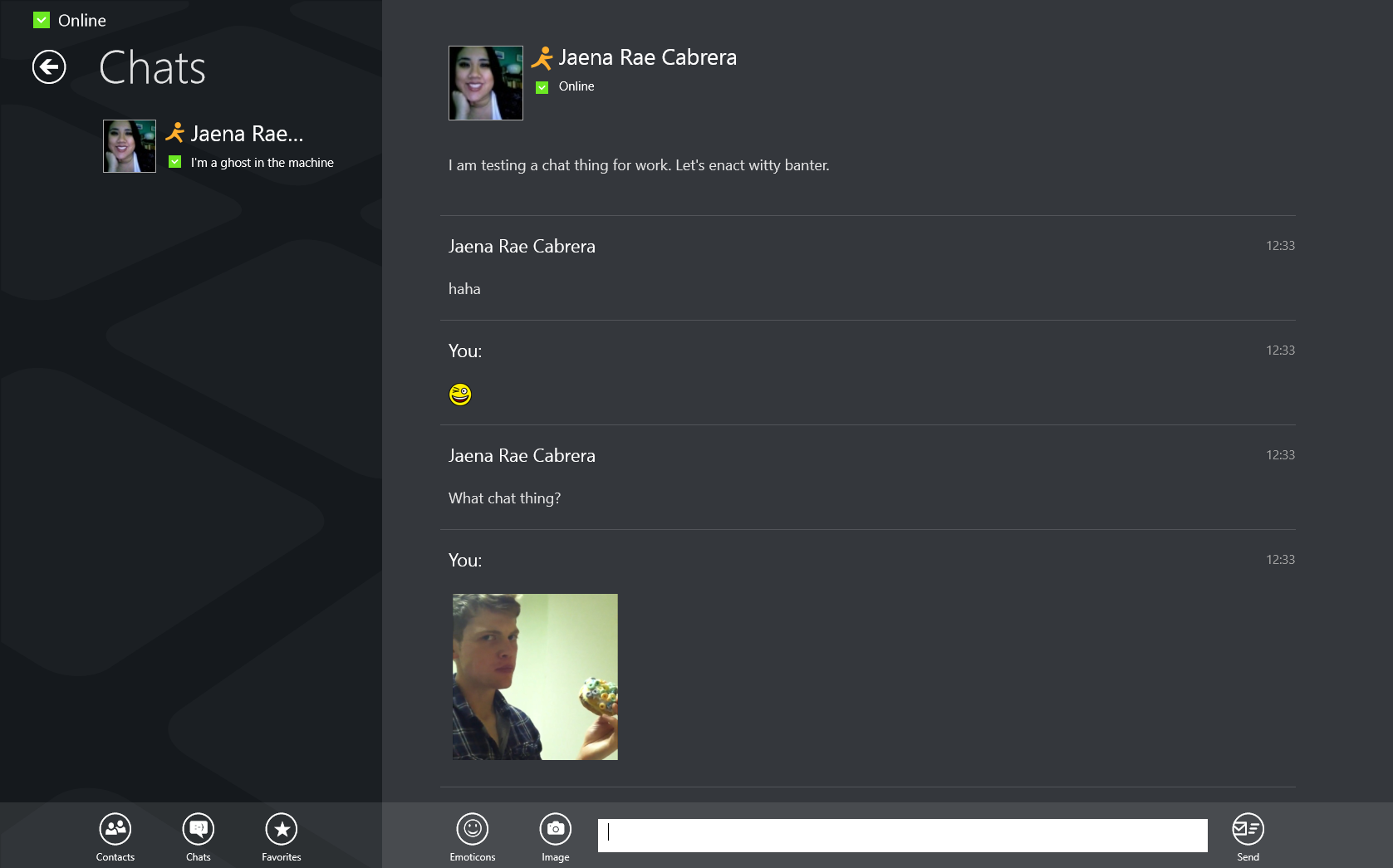
IM+ facilitates messaging through nearly every imaginable service, from Facebook to ICQ. It supports photo sharing, text messaging, and multiple accounts per service, making for the most comprehensive messaging app we could find on the Windows Store, all for free.
IM+ is the go-to place for any messaging needs.

Calendar

The built-in Calendar app does exactly what you'd think it would, but not much more. You can check the day's events, add an event with reminder options, and...that's about it. You can use Microsoft's app to sync up your own personal Google calendar, but you're out of luck if you need to sync Google calendars that have been shared with you.

That's why, as with the Mail app (see below), we recommend using the tried-and-true Google calendar as the alternative. You have to access it via your browser, of course, but you'll be able to see all your schedules at once without worrying about hacking the app. And yes, you can put Google Calendar on your Start screen: Just pin it to Start as you would any other URL, and pretend that it's an app.
We still love Google's calendar.

SkyDrive

Microsoft's cloud-storage service boasts hooks into nearly every device within the new Windows ecosystem and beyond. You can access SkyDrive file storage on a Windows desktop, a Mac, a Windows 8 tablet, a Windows Phone, and even iOS and Android devices. SkyDrive is also integrated into various Windows 8 and Windows Phone 8 apps, granting you quick cloud access and sharing when you need it the most. In fact, the new Web-app version of Microsoft Office is reason alone to love SkyDrive.
Yes, SkyDrive is fantastic—but it doesn't sync with Dropbox, the once de facto leader in cloud storage.
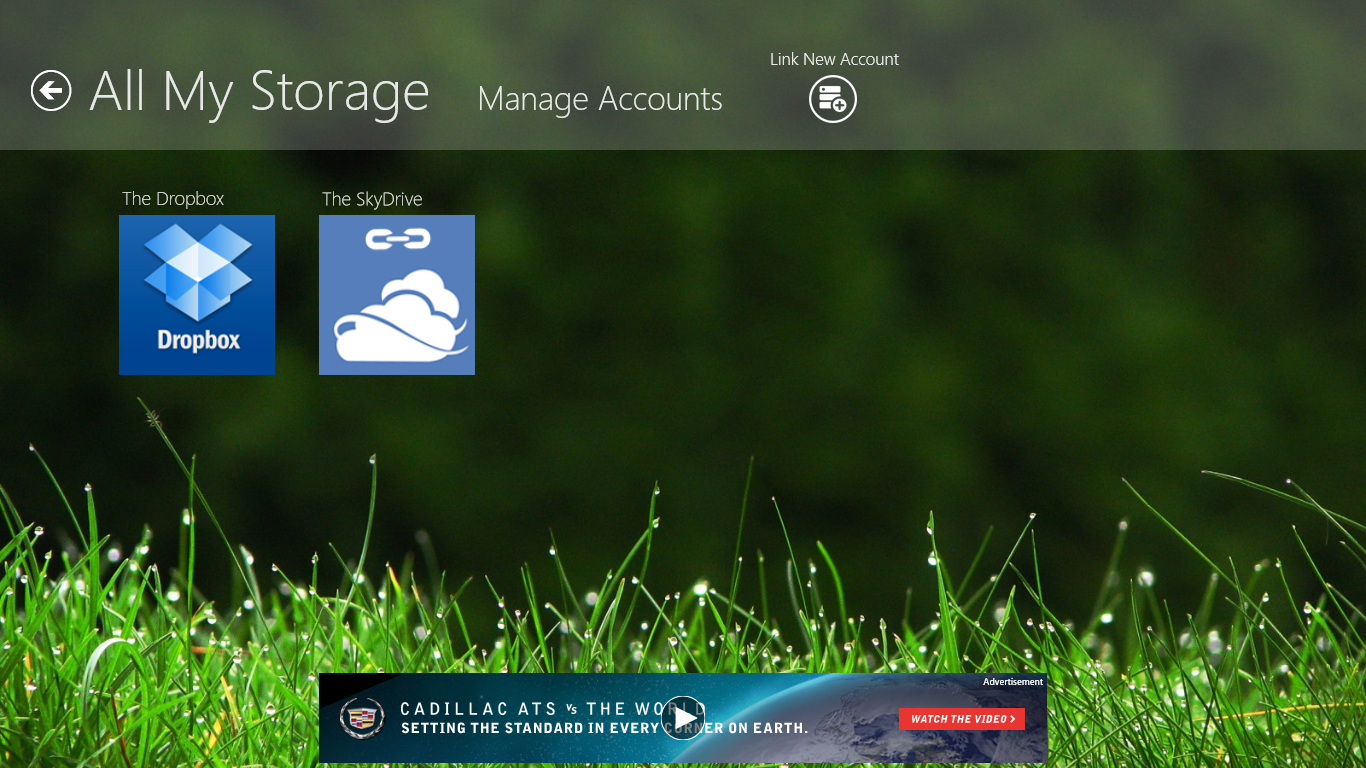
Enter All My Storage, a comprehensive app that brings together all the big cloud-storage systems, including SkyDrive, Dropbox, and Box. After you link your accounts, you can easily search through all of them in one place. The app even comes with a built-in media player to play local content or stream Dropbox media. It's free in the Windows Store if you're willing to tolerate some advertisements, but you'll also find a paid version for $3 that comes with cloud statistics and more themes, and does away with the advertising.
Link all your cloud accounts to one easy-to-manage app.

Photos

Photos is the central depository for all your photos and videos, whether you keep them on SkyDrive, local drives, Facebook, or Flickr. It's actually not a bad app, but exploring one's options is always nice, right?

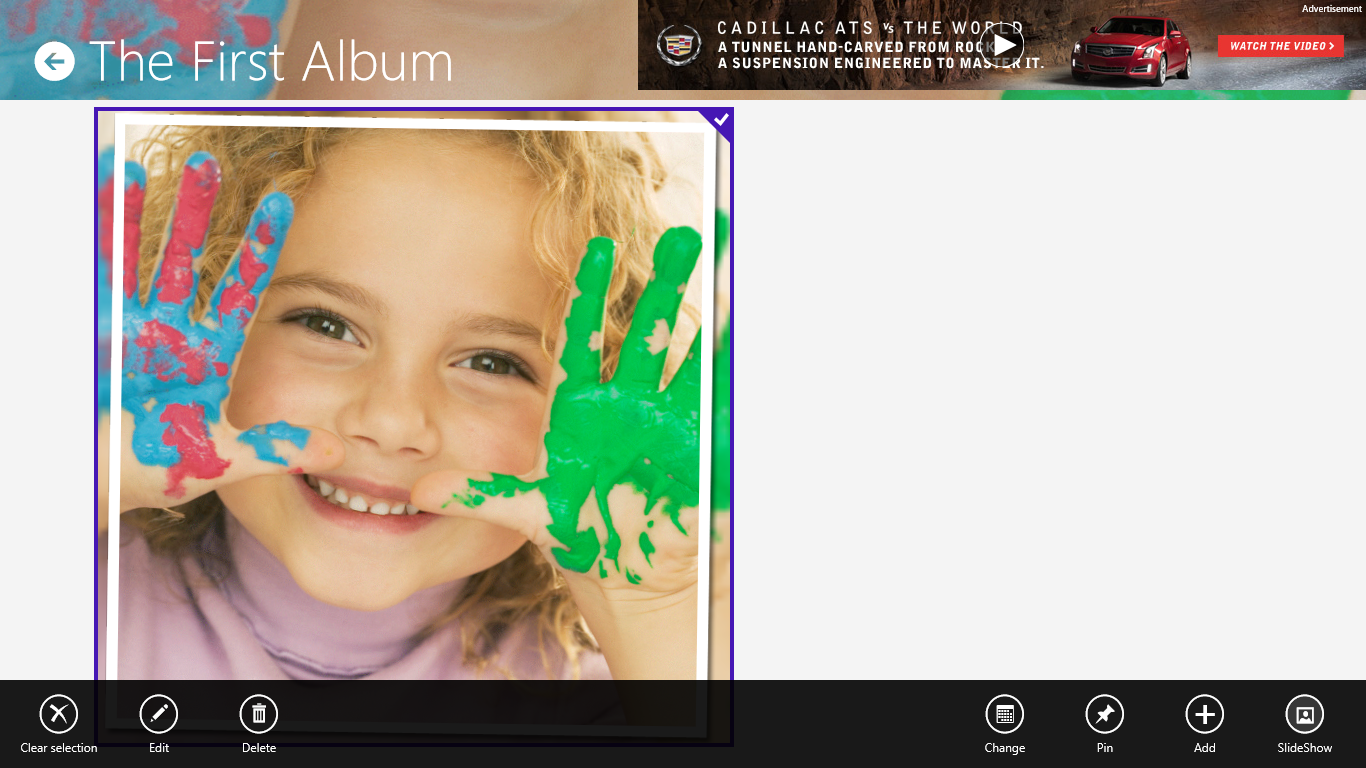
Albums HD offers a great way to "save your memories in one place." The app allows you to store your photos in customizable albums and then share them via slideshows that sport different transition effects. It even supports a Live Tile option so that you can view your photos from the Start screen. Albums HD is $1.49 on the Windows Store.
AlbumsHD provides some organization to your photos, and cool slideshow features.

Music

Like the Video app, the Music app allows you to enjoy your music, as well as to preview and purchase all the newest and best music that Xbox Music features.

But if you're looking for an inclusive music player that doesn't try to sell you music (and if you're not a fan of iTunes), check out MusicBee, a powerful, free program for any music lover. Unfortunately, no new Windows Store app is available for it yet, but you can install the program just as you would any other Windows program (assuming that you don't have a Windows RT device, of course). MusicBee sports nifty tools for song tagging, as well as for finding local shows and upcoming music releases. You'll also find a minimized music player, and various themes and skins.
MusicBee is a powerful music tool.
If you are a fan of streaming music, try Spotify (for those who know what they want to listen to), Pandora (for those who want to discover new music), and TuneIn Radio (for those who love listening to live radio).


Weather

If you have to ask yourself, "Sunglasses or an umbrella?" before you leave the house in the morning, Microsoft's Weather app is a great way to find the answer quickly and accurately—well, at least as accurately as weather prediction can get.
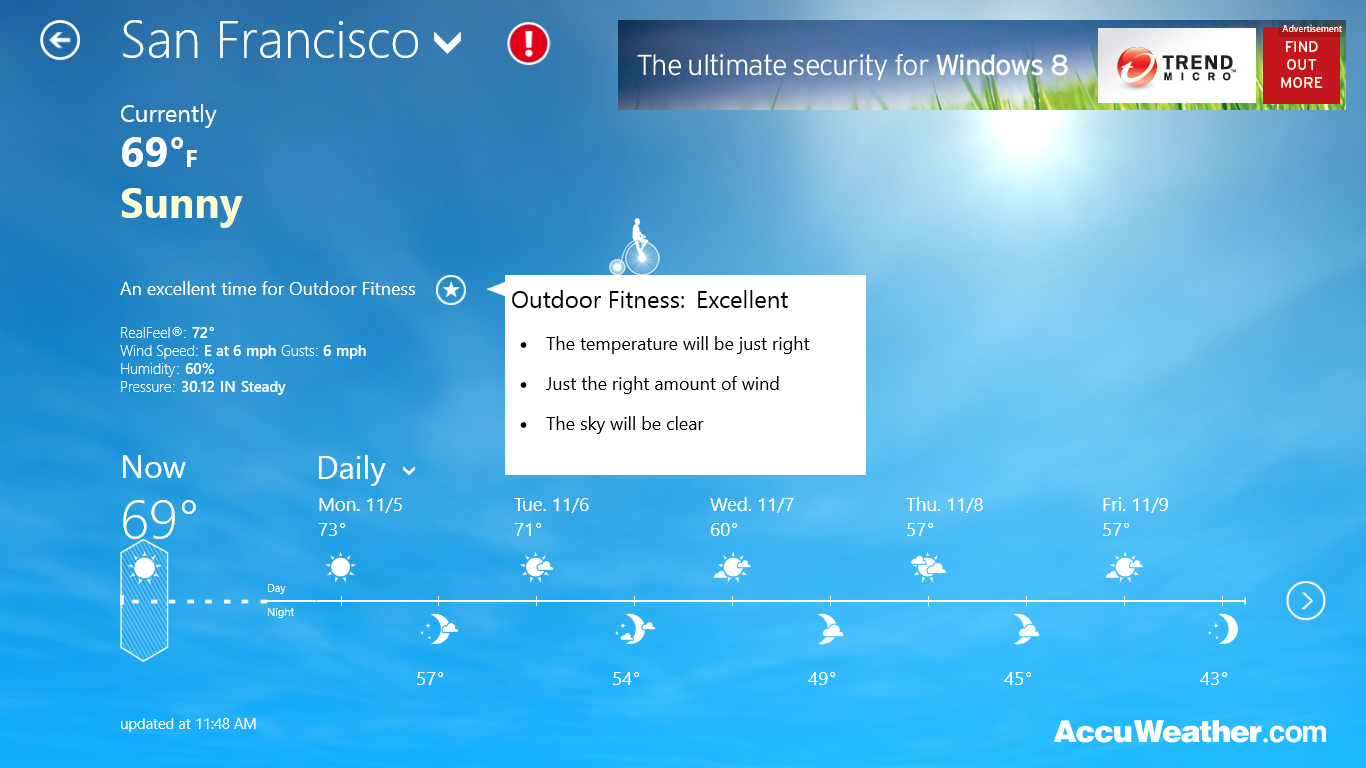
However, if you want even more in-depth information about the weather, look no further than AccuWeather's free weather app. It supports streaming data via Live Tile updates; shows predicted weather patterns for time periods ranging from 24 hours to 15 days; and provides weather timelines at your saved locations. It updates every 15 minutes to display the most accurate weather data, and it also provides full-screen Bing maps with radar information overlaid. But probably the coolest feature is the Lifestyle Forecasts, which provide star ratings for every hour of the day based on how the weather will affect certain outdoor activities and health risks.
AccuWeather offers a detailed look at weather conditions.

News

The News app provides all the top stories straight from Bing for different categories such as U.S. news, world news, business, entertainment, sports, technology, and politics. It provides a decent overview of the most popular stories of the day, but it isn't especially comprehensive.

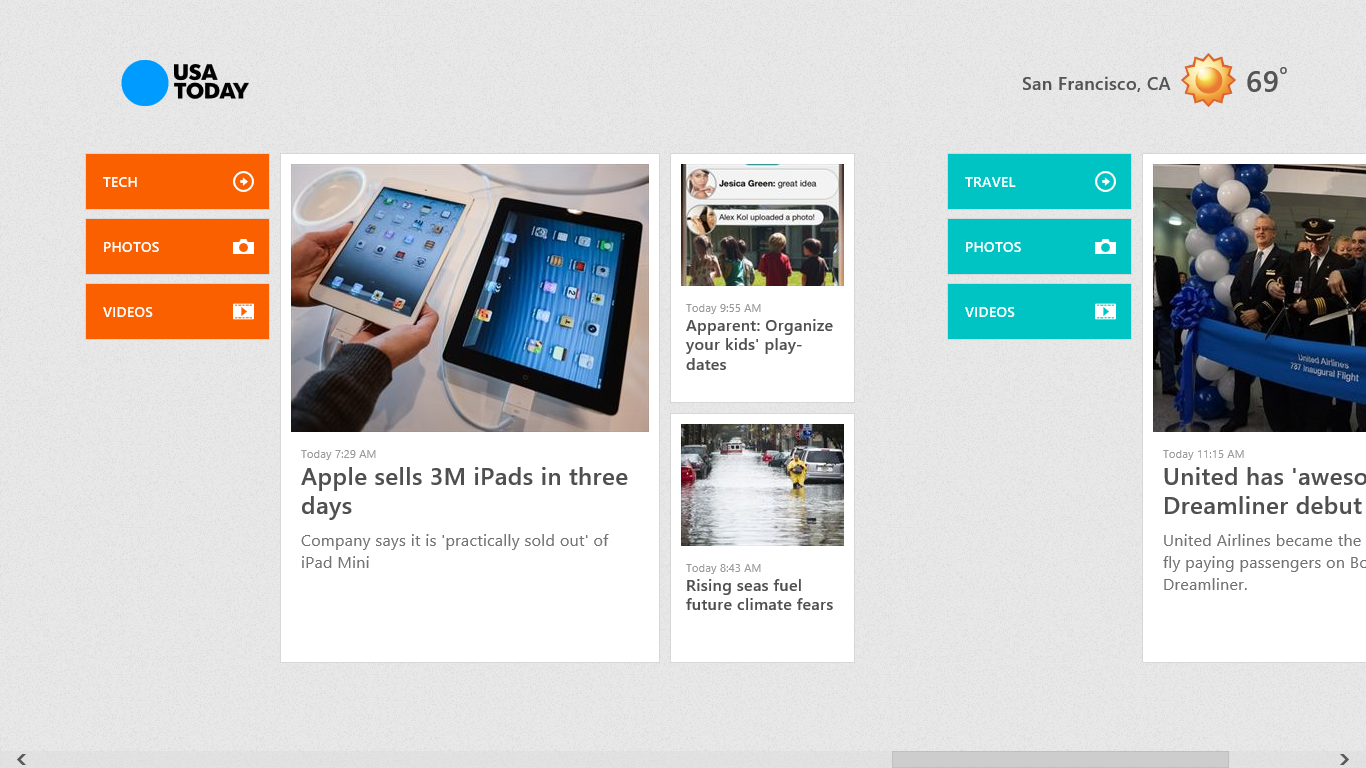
If you're looking for a worthy alternative, consider the USA Today app, which just received a major visual overhaul that's well organized and pleasing to the eye. It breaks down categories for news, sports, life, money, tech, and travel, and it has options for each section that let you browse pictures, videos, and other content. It's easy to navigate, thanks to Windows-esque tiling, and every story comes with a captivating picture. It even uses your location to update you on your current local weather conditions.
USA Today gives you the news in easy-to-manage tiles.

Travel

The Travel app highlights premier destinations across the globe through pictures, panoramic views, magazine articles, and location information. You can read up on your favorite vacation destinations, or even use the in-app Flights feature to look for plane tickets. It's full of recommendations for attractions, restaurants, and hotels, as well as guides on what to do once you've reached a new destination.

But you do have options. For some great, free travel journalism, look no further than Marco Polo Travelmagazine in the Windows Store. The app itself allows you to download the monthly issue (for free), and stores it locally for future use. The issues take a while to download; but once they're done, you can enjoy a plethora of stories, pictures, and video about exotic places all around the world. Unfortunately, though, the magazine won't help you book your next flight.
Enjoy seeing and exploring places all around the world with Marco Polo.
 

Mail

Microsoft's Mail app is intended to be a central funnel for all your email accounts, be they Gmail, Outlook, Yahoo, or any combination. Unfortunately, as with many of Windows 8's built-in apps, Mail lacks flexibility and features. It looks nice, but it isn't the most useful tool in the tool chest.
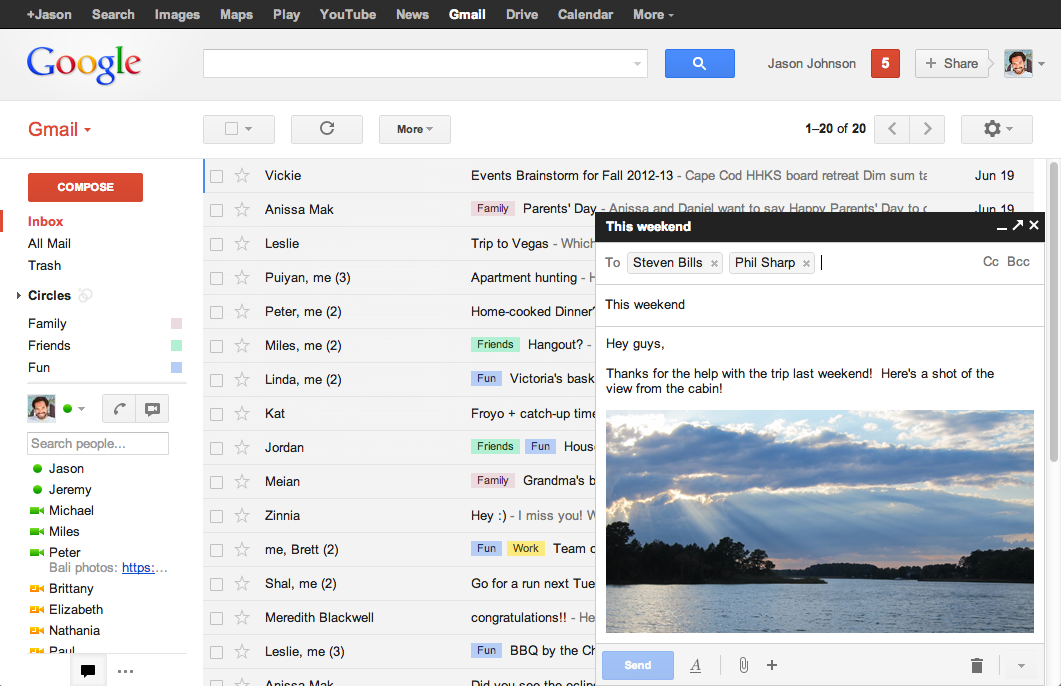
And so the juggernaut that is Gmail remains the go-to choice for mail. Apps are great, but some things still work best in the browser. Our best advice is to pin your bookmark of Gmail to your Start screen so that it has its own tile and can act as an app with quick and easy access.
 
 
We still love what we know, and Gmail is still our go-to mail client.
  Source: http://www.pcworld.com/article/2013300/11-winning-alternatives-to-windows-8s-built-in-apps.html