Pages

4/22/2014

10 File Explorer Tips You May Not Know You Can Do in Windows 8.1


Because I deal with folders and files almost on daily basis, Windows Explorer, now called File Explorer in Windows 8, is still my best friend and the program I use the most on my day to day work. Guess what? I actually quite like what the new File Explorer offers. It’s powerful, smooth, efficient, and user friendly, even the Ribbon bar looks quite nice to me. You may not agree but let me share with you these tips you may not be aware that you can do in this version of File Explorer.


1. Things you can do with Easy Access
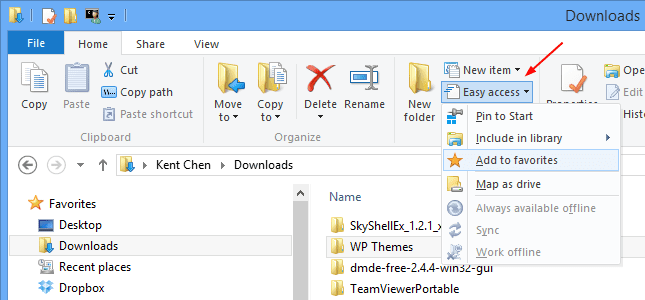
 

Windows Explorer - Easy Access


With Easy Access which you can find on Home Tab, you can
  • Pin file/folder to Start (the Start menu, not Taskbar)
  • Add file/folder to Library or Favorites
  • Map a network drive
  • Make file/folder offline, or Sync.


2. Invert selection


Windows Explorer - Invert selection


What is this Invert Selection anyway? Basically, it selects all items previously not selected. For example, you have spent quite a bit time selecting a lot of items from a large number of files or folders in a folder using a combination of Shift+Click and Ctrl+Click. Now, you realized you’ve made a mistake selecting the wrong item all along. And that’s when this Invert Selection comes to rescue. Simply click it and bang, all the items you previously wanted to select are all selected without going through again.
It’s available already in Windows 7 but it’s a lot easier in Windows 8.


3. Drop Files/Folder onto Address Bar to Copy/Move


Windows Explorer - Address bar


The Address bar in Windows Explorer displays a detail folder path of the current folder you are in. Do you know in Windows 8 you can simply drag and drop the files or folders into the displayed folder name to do a file copy or move? For example, in the screenshot above, I can copy the file Blank.exe to Data folder by simply dragging and dropping it to Data folder in the address bar.
I found this feature is super handy to me, and I just love it.


4. Show and hide items a lot easier


Windows Explorer - View - Show Hide


Making a file hidden is a lot easier in the new Windows Explorer. You can find all the operations easily in View Tab, including Hide button, Show/Hide hidden items, Show/Hide extension names, and display the check boxes. Oh, you can even access the Folder Options right from there too.


5. Quick Access Bar
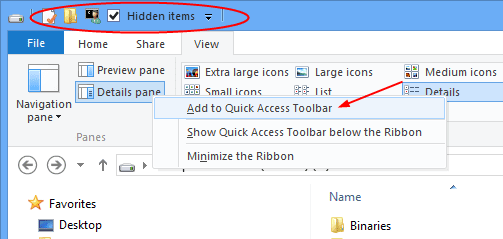
 

Windows Explorer - Quick Access Bar


With Quick Access Bar, you shouldn’t have the accuse anymore that it’s not convenience to find what you want when needed. You can simply put the often used items to the Quick Access Bar which is always available either at the top of the window or below the Ribbon.


6. Native support of ISO image files


Windows Explorer - ISO image


With this native support, I don’t need the 3rd party virtual drive to open my many ISO files anymore.


7. Delete file without confirmation box
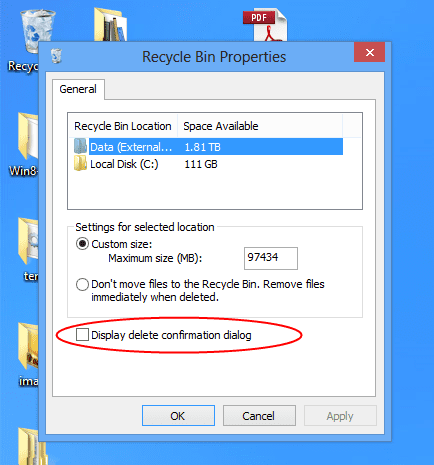
 

Windows Explorer - Recycle Bin Properties


It doesn’t really make sense having the confirmation box popping up asking “Are you sure” every time when we delete a file or folder when the items can still be recovered from the Recycle Bin, does it?
To disable the Confirmation box, right click the Recycle bin, choose Properties. And uncheck the option “Display delete confirmation dialog“.

/update on Nov. 26, 2013/

Alan Wade left a commend below raising a very good point that against the idea of disabling the confirmation of deleting file. If you have set the size of your recycle bin with a smaller size, any files larger than that size will get permanently deleted without going into the recycle bin. In that case, I agree that it might be a good idea leaving the confirmation window on to prevent something like this from happening.


8. SkyDrive and how to change the default location

SkyDrive is now tightly integrated in the system in Windows 8.1. The file sync is on by default and can be managed directly from PC Settings. Everything is done automatically, no more need for a separate client. But there is a small downside to this tightly integrated solution. If you are running Windows on a small capacity SSD, you will find the space would be filled up fairly quickly with SkyDrive sync’d files, even with the new feature called smart file that only downloads the files from SkyDrive when needed.
To change the default location of SkyDrive, go to File Explorer, right click SkyDrive from the left navigation panel, and choose Properties. Then change the default location in Location tab.


Change default SkyDrive location on Windows 8.1


Change default SkyDrive location on Windows 8.1


9. How to open File Explorer as Different User

Running File Explorer as Administrator is fairly easy but not so much if I want to run it as a different user, which used to be fairly easy on Windows 7. But there is a workaround you can follow.


10. The hidden Exit Explorer option

Go to desktop in Windows 8 or 8.1, hold down Ctrl & Shift key and right click the blank space in Taskbar, and you will find it there.
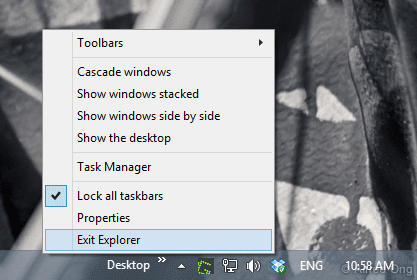

Hidden Exit Explorer in Windows 8


And that’s it for now. As a bonus, in case you don’t know, the easiest way to open File Explorer on all Windows is to press Win + E.

Source: http://www.nextofwindows.com/7-windows-explorer-tips-you-may-not-know-you-can-do-in-windows-8/


And in another article:

Desktop Searching

Microsoft got rid of a lot of features in Windows 8, but they decided to keep the trusty old File Explorer on the desktop. From here, you can search just like you did before, but with a host of options for better finding what you need. Once you click on the search box, the Search tab will appear at the top with all your options.


Search Tab   How To Search Better & Faster On Windows 8


When you begin typing in the search bar, options will appear for whichever folder you have selected. You can adjust where you search either by choosing a different folder or by navigating with the Location section of the Search tab. From here, you can choose to look in just the current folder or all the included subfolders, on This PC (which could take a while, as it scans everything), or search again in a different location or on the Internet (which will open Internet Explorer).


Search Article1   How To Search Better & Faster On Windows 8


Under the Options section at the far right, you can choose to open the file location instead of opening the file directly, save your search for later (most helpful if saved to the desktop, but also viewable under Favorites in the File Explorer), view your research searches, or (under Advanced options) you can choose if it searches through file contents, system files, or zipped files, as well as choosing exactly which files are indexed.


The Refine section allows for much more customization to weed through the hundreds of options you may find for any search. Under Kind, you can sort by documents, pictures, music, etc.; under Size, you can sort by size in KB or MB; and  under Other properties, you can find options for tags, date taken, type, name, folder path, and rating.


Search Modify1   How To Search Better & Faster On Windows 8


When selecting these options, you can edit them by clicking just to the right of the search term that appears in the box. Above, I clicked just right of the word “month” to get this view of a calendar, so that I could adjust what date modified I was searching for. Plus, if you manage to memorize the search terms, you can type them yourself and completely bypass clicking in the Search tab.


Completed your search? Click the Close Search button at the far right of the Options section, and you’re done.

If you liked this, you’ll definitely want to improve Windows 8 with Win+X Menu Editor and some new Windows 8.1 tweaks.

Source: http://www.makeuseof.com/tag/search-better-faster-windows-8/


Windows 9 coming in 2015, will try its hardest to distance itself from the Windows 8 train wreck

Ballmer at CES, with lots of Windows devices
To distance itself from the Windows 8 snafu, Microsoft’s next major update — Threshold — will reportedly skip Windows 8.2 and jump straight to Windows 9. Windows 9 is expected to arrive in April 2015, with internal sources saying that Windows 9 will make good on many of the Windows 8 features that caused such cruel and unusual distress to Desktop users. The Start menu is expected to make its illustrious return, and you should be able to run Metro apps on the Desktop in windows. Microsoft is still on schedule to release Windows Phone 8.1 and a service/feature pack for Windows 8.1 at the Build conference in April.


This latest information comes from the ineffable and surprisingly handsome Paul Thurrott, who usually has pretty accurate sources when it comes to Microsoft leaks. We had previously heard about Threshold, but at the time we thought Microsoft would stick with the Windows 8 naming scheme. By moving to Windows 9, it definitely signals that Microsoft is looking to make drastic, significant changes. Windows 8 is almost completely characterized by the maligned Metro Start Screen. We would be surprised if Windows 9 did not change the primary interface in some way, so that it’s visually distinct from Windows 8 — so that users know that that it isn’t ewww Windows 8. Windows 9 might even boot straight to the Desktop, by default — at least on laptop and desktop PCs, anyway. (Read: How to bring back the Start menu and button in Windows 8.)


Windows 8: Start8 Start menu replacement, cropped


Windows 9 is also expected to feature Metro 2.0 — some kind of maturation of the current Metro design language that dominates the Windows 8 Start Screen and apps. It’s not immediately clear what Metro 2.0 will be exactly, but part of it appears to be the ability to run Metro apps in separate windows on the Desktop. Presumably, if Metro apps are going to be on the Desktop, they will also gain the ability to be controlled with a mouse and keyboard. (Navigating current Metro apps with your keyboard is unpleasant to say the least.) Windows 9 may also feature complete cross-platform app compatibility between Windows 9, Windows Phone 8.1, and the Xbox One — but really, it’s too early to tell at this point.


Sinofsky, holding a Windows 8 Qualcomm Snapdragon-powered tablet (at Build, not CES)
Steven Sinofsky, holding a Windows 8 tablet. The beginning of the end.


Thurrott’s other interesting tidbits revolve around April’s Build conference, which occurs a couple of weeks after the company finishes its huge internal reorganization. While the conference will be mostly focused on Windows Phone 8.1 and the Xbox One, there will apparently be a “vision announcement” for Windows 9 — something that we haven’t seen since 2003, when Microsoft unveiled Longhorn (which later became Vista). During Sinofsky’s rein, Microsoft’s Windows division has been incredibly secretive — this Windows 9 keynote probably won’t be quite as crazy and freewheeling as the olden days, but Microsoft hopes that it will enough to begin the process of healing the wounds left by Windows 8.


Of course, now that I mention Longhorn, it’s impossible to ignore the parallels between Vista and Windows 8. Both were victims of Microsoft’s long and slow development cycle: Slow and bloated Vista arrived just as netbooks were taking off, and Windows 8 — though its heart was almost in the right place — was a couple of years too late. Hopefully the successor to Windows 8 will be as good as good as Vista’s successor. Microsoft kind of needs a miracle for Windows Phone 8.1, too — if you think that adoption of Windows 8 has been bad, it’s even more anemic on the smartphone side of the equation. The next 12-18 months will be very important for Microsoft: It must either field a compelling OS and ecosystem for smartphones and tablets, or it runs the risk of fading into consumer obscurity.


Source: http://www.extremetech.com/computing/174583-windows-9-coming-in-2015-will-try-its-hardest-to-distance-itself-from-the-windows-8-train-wreck

Below are some Windows 9 concepts from the web....enjoy...


4/20/2014

Microsoft is considering a free version of Windows 8.1, to increase its anemic market share

Windows 8.1 with Bing, desktop

Share This article

Faced with poor adoption of Windows 8, and no clear sign that matters will improve any time soon, Microsoft is thinking about releasing a free or low-cost version of Windows 8.1 called “Windows 8.1 with Bing.” The theory is that, by providing a free (or perhaps low-cost) version of Windows 8.1, users of Windows XP, Vista, and 7, will finally be convinced to upgrade, driving up its anemic market share. Microsoft hopes to offset the massive loss of income by pushing more users towards services like Bing, OneDrive, and Office. This follows news from MWC 2014 that Microsoft is also considering a similar move for Windows Phone. Desperate times call for desperate measures.


News of Windows 8.1 with Bing comes from Wzor, a rather renowned Windows leaker from Russia. As it stands, this new build appears to be a fairly normal version of Windows 8.1 Update 1. Microsoft insiders tell ZDNet that Windows 8.1 with Bing “is key to Microsoft’s experimentation with monetization.” As for why there doesn’t yet appear to be any money-grabbing monetization, it’s likely that this is just a very early build. We have no idea if Windows 8.1 with Bing will debut at the same time as Update 1 (due to be released on April 8), or whether it’s following its own separate schedule.


Windows 8.1 with Bing, installer

The big question, of course, is how Microsoft actually intends to recoup the massive loss of revenue by giving away Windows 8.1 for free. There is some revenue to be gained from OneDrive (formerly SkyDrive) and Skype subscriptions (both of which come pre-installed in Windows 8.1), but we’re talking relative peanuts to the billions of dollars that Windows licensing brings in per quarter. (Plus, OneDrive and Skype are available for all other Windows platforms anyway.) The most likely clue is the name of the build — Windows 8 has always had tight integration with Bing, and 8.1 Update 1 further cements it. Microsoft is working hard to make Bing much more than just a web search engine — some kind of deep-querying analytical engine that links together all of your Microsoft devices, services, and subscriptions — but still, we have no clue how Microsoft intends to make money from it. (Read: Windows 9 coming in 2015, will try its hardest to distance itself from the Windows 8 train wreck.)


Still, it’s significant that Microsoft is even looking at releasing a free version of Windows. If someone had suggested such an idea at Old Microsoft, they probably would’ve been fired. To be honest, at this point in Windows 8′s life cycle, and with the PC market continuing to fade, it’s probably not a bad idea for Microsoft to be exploring some drastic changes. Microsoft obviously needs to change something if it wants to continue competing in the PC and smartphone markets. If it has to give away its operating systems to grow its market shares until they’re non-trivial, then so be it. It’s not like Microsoft can’t afford to experiment for a while, especially if it’s a matter of life and death.

Source: http://www.extremetech.com/computing/177583-microsoft-is-considering-a-free-version-of-windows-8-1-to-increase-market-share

4/09/2014

Forget The End Of Life Woes: Windows 8 Has An XP Mode

XP Mode

Windows XP mode is restricted to Professional versions of Windows 7. Microsoft doesn’t officially support it on Windows 8, but there’s a way to get Windows XP Mode running on Microsoft’s latest operating system anyway. You won’t need a Windows XP disc or license key — just a computer running Windows 8.

Download Windows XP Mode

First, you’ll need to download the Windows XP Mode installer file from Microsoft. To download the file, you’ll have to validate your version of Windows. Microsoft won’t let you download this file if you’re using a pirated or improperly licensed version of Windows 8.
Choose to download the WindowsXPMode_en-us.exe file when prompted. Don’t actually run this installer when it’s downloaded — just download it.
download windows xp mode for windows 8   Forget The End Of Life Woes: Windows 8 Has An XP Mode

Extract the Windows XP Image

You’ll need to extract files from the Windows XP Mode installer. For this job, we recommend the 7-Zip file archiver; it’s free and works well. Once the .exe file is downloaded, right-click it in File Explorer, point to 7-Zip, and select Open archive.


extract files from windows xp mode installer on windows 8   Forget The End Of Life Woes: Windows 8 Has An XP Mode


Double-click the sources folder inside the file and locate the xpm file. Drag and drop the xpm file from the archive to a folder on your computer to extract it.


extract xpm file from windows xp mode installer   Forget The End Of Life Woes: Windows 8 Has An XP Mode


Open the extracted xpm file with 7-Zip in the same way.


open xpm file in 7 zip   Forget The End Of Life Woes: Windows 8 Has An XP Mode


Locate the VirtualXPVHD file inside the archive and extract it to a folder on your computer in the same way.


extract windows xp mode image from installer   Forget The End Of Life Woes: Windows 8 Has An XP Mode


This is a VHD — or virtual hard drive — file, so we should give it the correct file extension. Rename the file and add the .vhd file extension.


open virtualxpvhd file   Forget The End Of Life Woes: Windows 8 Has An XP Mode


You can now delete the WindowsXPMode_en-us.exe and xpm files to free up space.

Boot Windows XP Mode

We now have a .VHD file we can boot in a virtual machine program. We’ll use VirtualBox for this because it’s free and runs on all versions of Windows 8. You could try booting this file in Windows 8′s Hyper-V virtual machine manager, but that utility is only available on Windows 8 Professional, so most people won’t be able to use it.
Download and install VirtualBox, if you haven’t already. Then click the New button to create a new virtual machine. Go through the setup process, selecting Windows XP (32-bit) as the operating system version.


create virtual machine for windows xp in virtualbox   Forget The End Of Life Woes: Windows 8 Has An XP Mode


Select as much memory as you like — VirtualBox recommends 192 MB, but your physical hardware probably has a few gigabytes to go around. You may need to allocate more memory if you’ll be running demanding applications in Windows XP Mode.


select ram in virtualbox   Forget The End Of Life Woes: Windows 8 Has An XP Mode


On the Hard drive screen, select Use an existing virtual hard drive file and navigate to your VirtualXPVHD.vhd file.


open windows xp mode vhd file in virtualbox   Forget The End Of Life Woes: Windows 8 Has An XP Mode


You can now boot your Windows XP Mode system by clicking the Start button in VirtualBox. You’ll have to enter a few details to finish setting it up, but you won’t have to go through the entire installation process or enter a product key. From here, the process is about the same as if you had installed Windows XP inside a virtual machine from a Windows XP disc. Install your old software that requires Windows XP inside the virtual machine.


windows xp mode in windows 8   Forget The End Of Life Woes: Windows 8 Has An XP Mode


Windows XP Mode is noteworthy because it lets you run Windows XP applications on the same desktop as your Windows 8 system, while VirtualBox will confine your entire Windows XP system and its applications to a window by default. To have your Windows XP applications run on a desktop, you can use VirtualBox’s seamless mode. First, you’ll need to select Devices > Insert Guest Additions CD image and install the VirtualBox guest additions drivers and software utilities inside Windows XP. Next, you can click View > Switch to Seamless Mode to have Windows XP applications appear on your Windows 8 desktop.
Remember, Microsoft is ending support for Windows XP on April 8, 2014. They’re not supporting Windows XP Mode after then, either — that’s why Windows XP Mode isn’t officially part of Windows 8. Be sure to secure your Windows XP systems, even the ones running in virtual machines.

4/07/2014

8 Geeky Ways To Customize Windows To Your Needs


Whether you’re a tech guru or you feel as if you’re hardly getting by on your computer, customizing Windows is for everyone. That’s right – even if you don’t feel as though you’re the “tech savvy” type, you should customize Windows. In fact, there’s a pretty good chance it’ll help you navigate your computer better. And thanks to the Internet, you don’t have to figure these customizations out yourself – we’ve covered a significant portion of them right here on MakeUseOf.

Manage & Enhance The Context (Right Click) Menu

If you thought your context menu could never be edited, you’ve been sorely mistaken. You have several options depending on how you’d like to customize it.


Remove Entries


One method is simply removing entries of the context menu. This is often overlooked as a method to speed up Windows. Below are two options we recommend:
1 CCleaner Edit Windows context menu   8 Geeky Ways To Customize Windows To Your Needs


Add More Functionality And Customize Programs


Finding the tool you’re looking for seems to always be a problem, no matter what type of computer you use, and with Windows 8 this is even more of an issue. Adding common programs you use and other shortcuts or functions can save time, headaches and increase your efficiency on tasks you find yourself constantly doing.
Your Menu (our review) is a great program for adding program shortcuts to the context menu, allowing you to access them with a simple right click on the Desktop.
2 Edit context menu Your Menu   8 Geeky Ways To Customize Windows To Your Needs


If you want to do more than just add program shortcuts, I recommend the pro version of Right Click Enhancer (our review), which allows you to greatly extend the context menu’s functionality.


3 Edit context menu Right Click Enhancer   8 Geeky Ways To Customize Windows To Your Needs

If you’re looking for more enhancements there are 7 awesome context menu tools you should check out.


Windows Taskbar Tricks


You may be aware of some of the tricks you can do with the Windows Taskbar, such as pinning folders to the Windows Explorer pop-up menu, which can be quite handy in cleaning up your desktop.

4 Pinned Folders Windows Explorer   8 Geeky Ways To Customize Windows To Your Needs

Other built-in functions include accessing programs’ additional functions by right clicking their icon, reducing the size of the Taskbar and icons to allow for more screen space, and organizing the icons in the Notification Tray.

5 Taskbar Tricks   8 Geeky Ways To Customize Windows To Your Needs

This is by far not all the things you can do with the Taskbar. Further useful Taskbar tricks include disabling or changing the size of Aero Peek thumbnails, running applications with administrator privileges and the secret behind middle-clicking a Taskbar app icon.
7+ Taskbar Tweaker (our review) is the ultimate tool for adjusting the Taskbar exactly how you want it.


Add A Dock Or Replace The Taskbar Completely


6 Rocketdock with Stacks Docklet   8 Geeky Ways To Customize Windows To Your Needs

Having a dock not only spices up the look and theme of your Windows PC, it adds awesome features, accessibility and can even be a taskbar replacement.
So what are your options when it comes to docks?
7 Winstep Nexus Dock   8 Geeky Ways To Customize Windows To Your Needs

If you’re interested in a different look altogether, perhaps one that’s not modeled after the Mac OS X dock, you should check out Circle Dock.

8 Circle Dock   8 Geeky Ways To Customize Windows To Your Needs


Switch Your Wallpaper… Automatically


How long have you had that wallpaper on your desktop? With all the awesome images both on the Internet and your own computer, why are you sticking with the same one day after day?
So how can you change your desktop wallpapers? You can try one of the following apps:
9 desktoppr   8 Geeky Ways To Customize Windows To Your Needs

Pulse (our review) and Wally (our review) are both great open source solutions full of functionality.


What About Finding Awesome Wallpaper?


If you’re stuck on what wallpaper you want to use, first I (again) recommend taking a look at Desktoppr – it has some incredible images. Below are some other great options.
But we at MakeUseOf love variety, and so we have provided multitudes of options for finding awesome wallpaper.


Personalize The Windows Logon & Start Screen


You have put up with that boring logon screen in Windows long enough – here’s how to give it your own spin and style. One of the most basic changes you can make is your profile picture, which Tina shows you how to do in her article of 5 cool ways to customize Windows 7.
10 Customize Logon Screen Profile Picture   8 Geeky Ways To Customize Windows To Your Needs
  
The best ways to customize the Windows Welcome Screen:
11 Customize Logon Screen Logon Screen Tweaker   8 Geeky Ways To Customize Windows To Your Needs

Alternatively, you can manually edit the Windows Logon Screen message and font with a program called Resource Hacker.
Windows 8 has several customizations built in on the Lock Screen where you can add your own background, choose an app to display a detailed status, decide which apps can run in the background, and show quick status and notifications.

12 Customize Logon Start Screen WIndows 8   8 Geeky Ways To Customize Windows To Your Needs


Start Screen Tweaks:

Furthermore, there are 10 Windows 8 Start Screen hacks such as running modern apps in the Desktop, adding shutdown shortcuts and moving the Start Screen onto the Desktop.
Lastly, if you absolutely hate the Start Screen you can completely disable the Modern User Interface.


Hack That Start Button


It’s no secret – removing the Start Button and the Start Menu in Windows 8 caused a lot of distress among Microsoft’s users. And when Microsoft added the Start Button back in Windows 8.1, they still left out the Start Menu. If you’re longing for the Start Menu on your Windows 8 machine, you have a few options:
Non-third-party software solutions:
13 Custom Start Menu Toolbar   8 Geeky Ways To Customize Windows To Your Needs

While you’re moping about your missing Start Menu, go ahead and hold down the Windows Key + X.


14 Power User Start Menu   8 Geeky Ways To Customize Windows To Your Needs

Whoh! That’s new! Well, actually it’s been around since the beginning of Windows 8. This is known as the “power user menu” and although it’s awesome in itself, a third-party program called Win+X Menu Editor (our review) allows you to edit these shortcuts – a pretty nifty tool.


15 add power options to win x menu   8 Geeky Ways To Customize Windows To Your Needs

Third-party Start Menu options:
16 Classic Shell Start Menu   8 Geeky Ways To Customize Windows To Your Needs


What’s that? You say you’d rather get rid of the Windows Start Button? Well, don’t worry, you can still do that while having Windows 8.1.
If you’d like to change and customize the Start Button in Windows 7 we recommend a program aptly named Windows 7 Start Button Changer.


17 Win 7 Start Button Changer   8 Geeky Ways To Customize Windows To Your Needs


Change Up Your Mouse Cursor


18 Cursor   8 Geeky Ways To Customize Windows To Your Needs


A really simple option for customizing your PC is to change the mouse cursor from that plain and boring default one. There are two solid programs we recommend for this:


Complete Overhaul: Theme Windows


The final touch to personalizing Windows is a theme.
The non-third-party route:
Excellent Windows customization apps:
Whether your theme is aimed at having a minimalist Desktop (my preference) or adding several “moving parts” to your Desktop, there are plenty of ways to personalize your PC.


19 Rainlendar   8 Geeky Ways To Customize Windows To Your Needs

There are some amazing Windows 8 themes and also some pretty neat Windows 7 themes. Of course, the ones we covered are only a small amount of what’s available on websites like deviantART. Below is one of the many themes I’ve had.

20 Windows Theme Example   8 Geeky Ways To Customize Windows To Your Needs

In combination with themes, a great addition is to change the way Windows runs based on the time of day using tools like f.lux (our review), as well as many others.


Style In Combination With Functionality


There are some awesome tools you can use in combination with your customizations, that will add both functionality and style to your computer:
21 Launchy   8 Geeky Ways To Customize Windows To Your Needs


There are so many excellent ways to customize Windows to make your computer more accessible. Whether you’re tech-savvy or have a hard time finding your way around the computer, there’s always the perfect customization option for you.Are you looking for even more tips and ideas on customizing Windows? Our in-depth Windows Customization guide is sure to answer all your questions.
What are your favorite Windows customizations? Do you have any additional tips and preferences to add? We always look forward to your feedback in the comments.

Source: http://www.makeuseof.com/tag/8-geeky-ways-customize-windows-needs/