Pages

2/29/2012

Bring the Classic Start Menu Back in Windows 8

from the authors at the HowToGeek.com


Both the Start button and classic Start menu are gone in Windows 8. If you don’t like the full-screen, Metro-style “Start screen,” there are a few ways to get a classic-style Start menu back.
In the Developer Preview of Windows 8, you could remove Metro by deleting the shsxs.dll file, but you can’t do this in the Consumer Preview. Metro is now baked into Explorer.exe itself.

Create a Start Menu Toolbar

It’s not a well-known feature, but Windows can create toolbars that show the contents of a folder on its taskbar. This means that you can create a pseudo-Start menu without installing any other software on Windows 8. Just create a new toolbar that points at the Start menu’s Programs folder.
From the desktop, right-click the taskbar, point to Toolbars and select “New toolbar.”

Type or copy and paste the following path into the Choose a folder window:
%ProgramData%\Microsoft\Windows\Start Menu\Programs

Click the “Select Folder” button and you’ll get a Programs menu on your taskbar.

Right-click the taskbar and uncheck “Lock the taskbar” if you want to move the new Programs menu around.

Drag and drop the grip at the left side of the toolbar to place it somewhere else on the taskbar, like at its left side — the Start menu’s traditional location.

Right-click the “Programs” text if you want to change or hide its name. After you’re finished, right-click the taskbar again and select “Lock the taskbar.”
There’s one catch with this method — it won’t actually show all your programs. The Start menu actually grabs shortcuts from two different places. In addition to the system-wide ProgramData location, there’s a per-user Programs folder at the following location:
%AppData%\Microsoft\Windows\Start Menu\Programs

As you can see from the screenshots, the Windows Defender shortcut — and other shortcuts — don’t appear in our toolbar menu.
You could create a second toolbar to list programs from this folder, or perhaps move shortcuts from the %AppData% location to the %ProgramData% location.
Another option is creating a custom folder full of program shortcuts and using a toolbar that points at that folder instead.

Install ViStart, a Third-Party Start Button

ViStart is making the rounds as a third-party Start button replacement. It was originally designed to add a Windows 7-style Start button to Windows XP, so it’s basically a re-implementation of the Windows 7 Start button. And it works on Windows 8.
ViStart wants to install other software when you install it – click the Decline button.

After it’s installed, you’ll see the Windows 7-style Start orb back at the left side of your taskbar.

Click it and you’ll see the familiar Start menu. Almost everything works as you’d expect, although I couldn’t find a way to pin apps to the Start menu. It still shows your most frequently used apps.

Right-click the ViStart system tray icon and select Options if you want to configure it.

You’ll find options for changing the default Web browser, email client and other program settings.

One bonus is that ViStart takes over your Windows key. Pressing the Windows key opens the ViStart Start menu, not the Metro-style Start screen.
You can still open the Start screen by moving your cursor to the very bottom-left corner of the screen, or from the Charms menu that appears when you hover your cursor over either the upper or lower-right corners of your screen.

If you prefer a different Start menu replacement, leave a comment and let us know about it.

Source: http://www.howtogeek.com/107711/how-to-get-the-classic-start-menu-back-in-windows-8/?utm_source=newsletter&utm_medium=email&utm_campaign=060312

11/04/2011

How To Use System Refresh in Win8

How to Use Refresh and Reset in Windows 8 to Easily Reinstall Your PC


Sick of formatting? Then learn how to breathe new life into your machines without formatting using the new Refresh and Reset features present in Windows 8.

Refreshing Your PC

After a while your PC becomes slow, and you wish you could format. The problem is that you have to much data, spent hours customizing your Windows installation to meet your needs, as well as downloaded and installed application. Now is the perfect time to do a refresh of your PC. When you do a refresh here is what will happen:
  • Your personalization settings as well as all your files will not be removed or changed
  • Your PC’s settings will be restored to there defaults
  • Any application that were not installed through the Windows Store will be removed, however those that were installed through the Store will remain.
Refreshing your PC can be done either through the new Metro Style control panel or through the classic control panel. We will do it from the Metro Style control panel, as that is that is the new way in which configuration is done. So to get started launch the Control Panel application.


Once the control panel has opened scroll through the list on the left hand side, until you can select the “General” category. This will load snap the “General” settings panel in, on the right hand side. Navigate to the bottom of the settings on the right. From here we can refresh our PC. Click the Get Started button to initiate a Refresh.


Once you click the “Get Started” button, a banner will inform you on what will be changed.


After clicking the “Next” button, you will be informed that Windows will reboot your system.


When you ready you can click the “Refresh” button which will restart your PC.


When your PC, boot back up it will start Refreshing your system.


Resetting Your PC


When you breathe new life into your machine using the “Reset” method, think of it as restoring it to the state that you received your PC in when you bought it from the shop. Here is what will happen to your current data and configuration:
  • Any personal files will be deleted
  • All configuration changes will be reset to defaults
Resetting your PC can be done either through the new Metro Style control panel or through the classic control panel. We will do it from the Metro Style control panel, as that is that is the new way in which configuration is done. So to get started launch the Control Panel application.


Once the control panel has opened scroll through the list on the left hand side, until you can select the “General” category.  This will load snap the “General” settings panel in, on the right hand side. Navigate to the bottom of the settings on the right. From here we can reset our PC. Click the Get Started button to initiate a Reset.


Once you have clicked the Get Started button a banner will be displayed across the screen, explaining what will happen to your data and applications. Since we have already explained this you can just click the next button to move on.


If you have more than one drive, you will be asked which drives you want to remove files from. You can choose either all drives, or just the drive which Windows resides on.


You will be prompted for confirmation that you want to reset your PC. Click the Reset button to get started.


Your PC will then reboot.


Once it starts up again Windows will commence the Reset process.


Once it has finished, your PC will reboot once more, this time once it restarts it will appear as you are booting the PC for the first time ever, it will load drivers and appear to be in a generalized state, where you have to create your user account, etc.

Source: http://www.howtogeek.com/75901/how-to-use-refresh-and-reset-in-windows-8-to-easily-reinstall-your-pc/?utm_source=newsletter&utm_medium=email&utm_campaign=041111

10/21/2011

Windows 8 array of features you will drool over

Apparently, as we all know, Windows 8 has been introduced by Microsoft as the center platform for the upcoming tablets and PCs. It has even been posing a strict competition to Apple. The all new operating system is simple but perfect and is based on the same principle as well.
The new and upcoming version comprises of various extensive features. There are various latest elements in the OS table which will present a complete makeover of the interface to the users. In the released beta version, you will find numerous features which will make you working easier and more sorted out.


Let’s have a look at the much talked about features:

i. Windows Store: After seeing the popularity of Apple iTunes store and Android marketplace, Microsoft has come up with a concept of Windows store for the users where they can purchase applications, right antivirus and even a movie player.

ii. Support for ARM-processors: ARM, the 32-bit embedded microprocessors are highly compatible and can be easily used on Windows 8 systems. This will help reducing the power consumption. Moreover, even while using laptop and tablet, the battery will be consumed slowly and gradually.

iii. Faster Booting: Microsoft is competing with the feature of faster booting in the Google Chrome laptop. Thus, by optimizing the OS to start quickly, Microsoft has incorporated the similar feature. The booting time will however depend upon the kind of machine you have.

iv. Metro Interface: One of the most exciting and the most talked about features of Windows 8 is the all new Metro User Interface. It is designed to provide you an ultimate and smooth browsing experience.

v. Multiple Screen Wallpaper: While using Windows 8, you can have the wallpapers displayed over various displays. The same principles have been around since the days of dual screening and with this it will again be back to action.

vi. Improved Windows Explorer: Windows 8 uses Ribbons as the elements instead of Windows Explorer. Ribbons is a new and innovative file copying system.

vii. Less usage of CPU and RAM: The developers say that Windows 8 will use lesser space in CPU as well as RAM unlike its predecessors, Windows 7 and Windows Vista.
With such a long list of innovative features, Windows 8 is a must have for all of you people.

And one of the most appreciated features
Windows Restore:

Windows 8 to Have 3 Rs: Recovery, Reset, Restore

5:30 PM - July 2, 2010 by Marcus Yam -
source: Tom's Hardware US
Recovery, Reset, Restore all to fight the Rot.

We all know about "Windows rot," where the operating system slowly degenerates to a slow, sluggish state after numerous installs, uninstalls, and other things that a system accumulates over time.

Those of us who perform good housekeeping practices on our computers keep our Windows installs running better, longer, but that's not the case for everyone. The action of a fresh format and/or reinstall can make things feel new again, even on old hardware. And now it seems that Microsoft could be building a reinstall feature into Windows 8.

As seen in some of the leaked presentation slides, Microsoft could have a recovery option to "reset Windows" while retaining all personal files and user accounts. One of the presentation images shows the option of reinstalling all of the app purchases from the Microsoft App Store. Interesting stuff.

Zoom
Zoom
Zoom
(source: MSFTKitchen)

Source: http://www.tomshardware.com/news/windows-8-win8-recovery-reset-restore,10794.htmlhttp://www.tomshardware.com/news/windows-8-win8-recovery-reset-restore,10794.html

9/25/2011

My Windows 8 Developer Preview Installed

I downloaded the new Windows 8 Developer Preview today and wanted to see what is new. Much of the time, it was very similar to Windows 7. The new Metro interface is interesting. Metro reminds me of the Windows Media Center previously available for Windows Vista and 7. There is a definite shift towards tablet /touch computing and real-time Internet content. Performance was pretty quick for a developer build. When logging in it asks for your Windows Live/Hotmail email address and mobile cell phone number to provide this integration. This is where your info will be synched. This build did not recognize my video card on my Intel dual-core 6750 desktop. It was fully functional although not that different from Windows 7. And there are now 3rd party add-ins for Windows 7 to give you a Metro touch screen launcher. More on that on a another posting. But overall a nice and stable initial build. I was able to dual boot this Win8 and Fuduntu linux on the same box under different partitions.


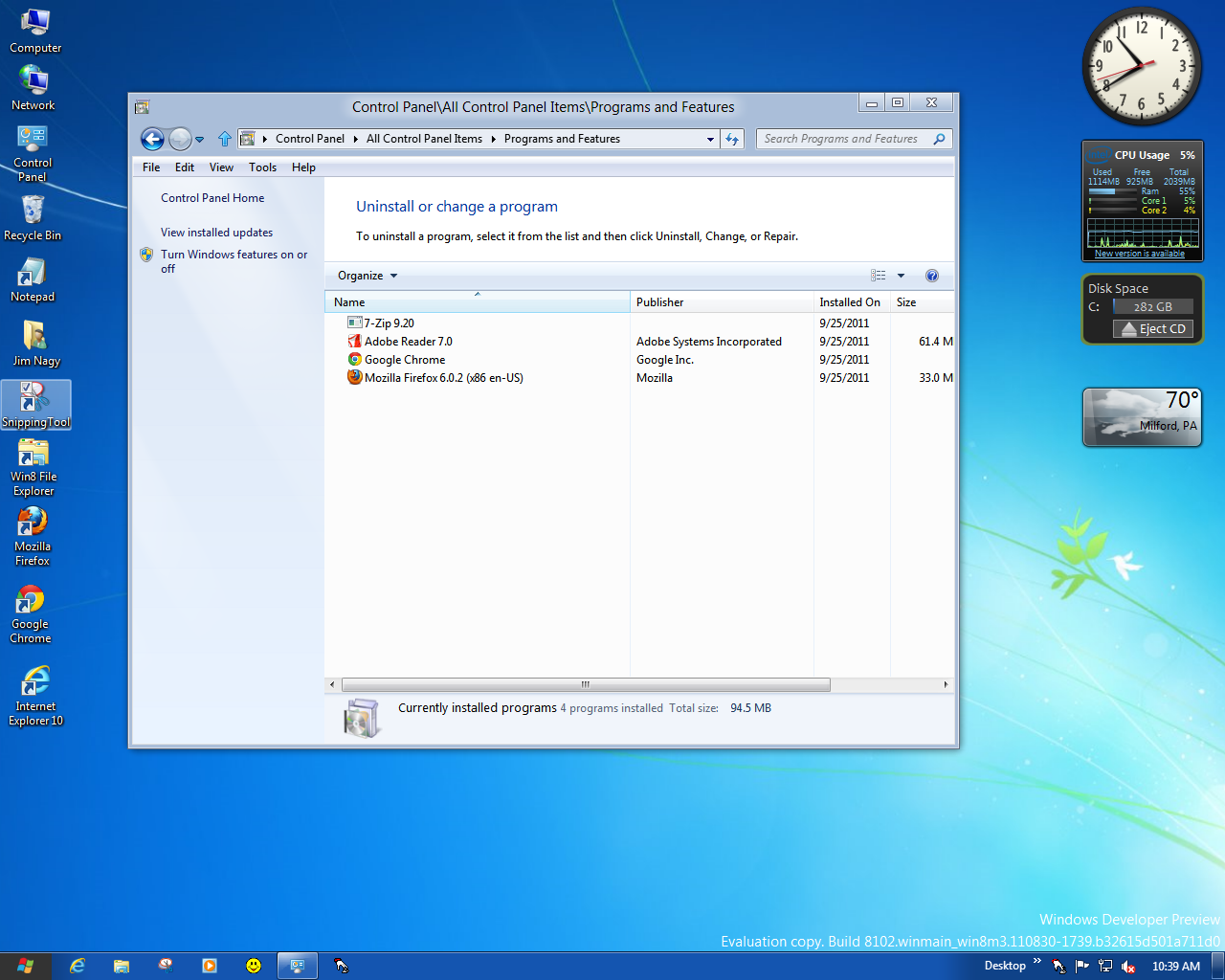
Selecting Desktop from the above menu, brings you to the traditional Windows 8 desktop (below).


Below is Internet Explorer 10.


Below is Firefox 6.02


Below is Chrome 14.0


Windows Media Player looks the same.


Below is the Windows Personalization panel, which also looks the same.


Below is the Apps listing


Below are the feeds menu


Below is the Weather applet.


Below is the Stocks applet.


Below is the Socialite applet for Facebook and other sites.


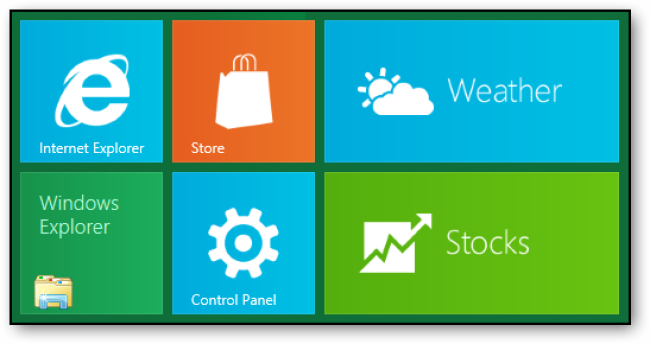
The Control Panel applet is also available from the Metro touch screen page.

Windows 8 has the same basic programs like the Snipping Tool, Notepad, Wordpad, Photo Viewer, Fax & Scan, Paint. A new program called Journal works with touch screen handwriting or drawing (below).


You get the Windows 8 Developer Build ISO here:
http://msdn.microsoft.com/en-us/windows/home/