

Pages

11/12/2012

PCWORLD- 20 must-know Windows 8 tips and tricks


Windows 8 is rife with features and behaviors that conspire to perplex even the most experienced PC users. Not all of them are bad, per se, but few of them are immediately intuitive. Making matters worse, the OS was primarily designed for touch control, and as a result, many mouse and keyboard commands feel like tacked-on afterthoughts.
But help is on the way.
We've assembled a list of our favorite Windows 8 shortcuts, tricks, and workarounds. Many focus on making the most of the OS on a traditional desktop PC, so if you're interested in touch gestures, please check out our article that focuses directly on the Windows 8 touch experience. Now let's start our journey of discovery with a look at easy-to-use (though often tough to remember!) Windows 8 hotkey commands.

Employ the hottest hotkeys we know

In these key combinations, hold down the Windows key (normally located between Alt and Ctrl) and another key, as described on this list.
  • Press the Windows key to enter the tiled Start screen.
  • The Windows key + M minimizes everything that's showing on the desktop.
  • The Windows key + E opens Explorer for quick access to folders.
  • On the Start screen, press the Windows key + D to instantly get to the desktop.
  • The Windows key + Tab opens a list of currently running programs.
  • The Windows key + Print Screen takes a screenshot and saves it in a Screenshots folder nested in your Pictures folder. 
  • To take a screenshot on a Windows 8 tablet, simultaneously press the Windows button and the volume-down button on the tablet chassis.
  • The Windows key + Q opens a global search menu. Type what you're looking for and where you would like to look.
  • The Windows key + W opens a search in your system settings to quickly locate and change system properties.
  • The Windows key + F opens a file and folder search.
  • The Windows key + Pause opens the system properties page to show you a quick rundown of your specs.
  • The Windows key + "," (that's the comma sign!) makes all current windows transparent, giving you a peek at the desktop as long as you hold down the Windows key.
  • The Windows key + "." (the period) snaps a window to the right or left side (toggling each time you press ".").
  • The Windows key + R prompts the Run command—useful for quickly launching apps and other routines with a command prompt.
  • The Windows key + X opens the Quick Access Menu, exposing system functionality such as the Command Prompt, Disk Management, File Explorer, Run, and more. Alternatively, you can right-click on the bottom right corner of the screen to spawn the Quick Access Menu.
  • The Windows key + I opens the settings menu, giving you quick access to the Control Panel, Personalization, and your Power button, among other features.
  • The Windows key + O locks orientation on devices with an accelerometer.

Zoom in tight
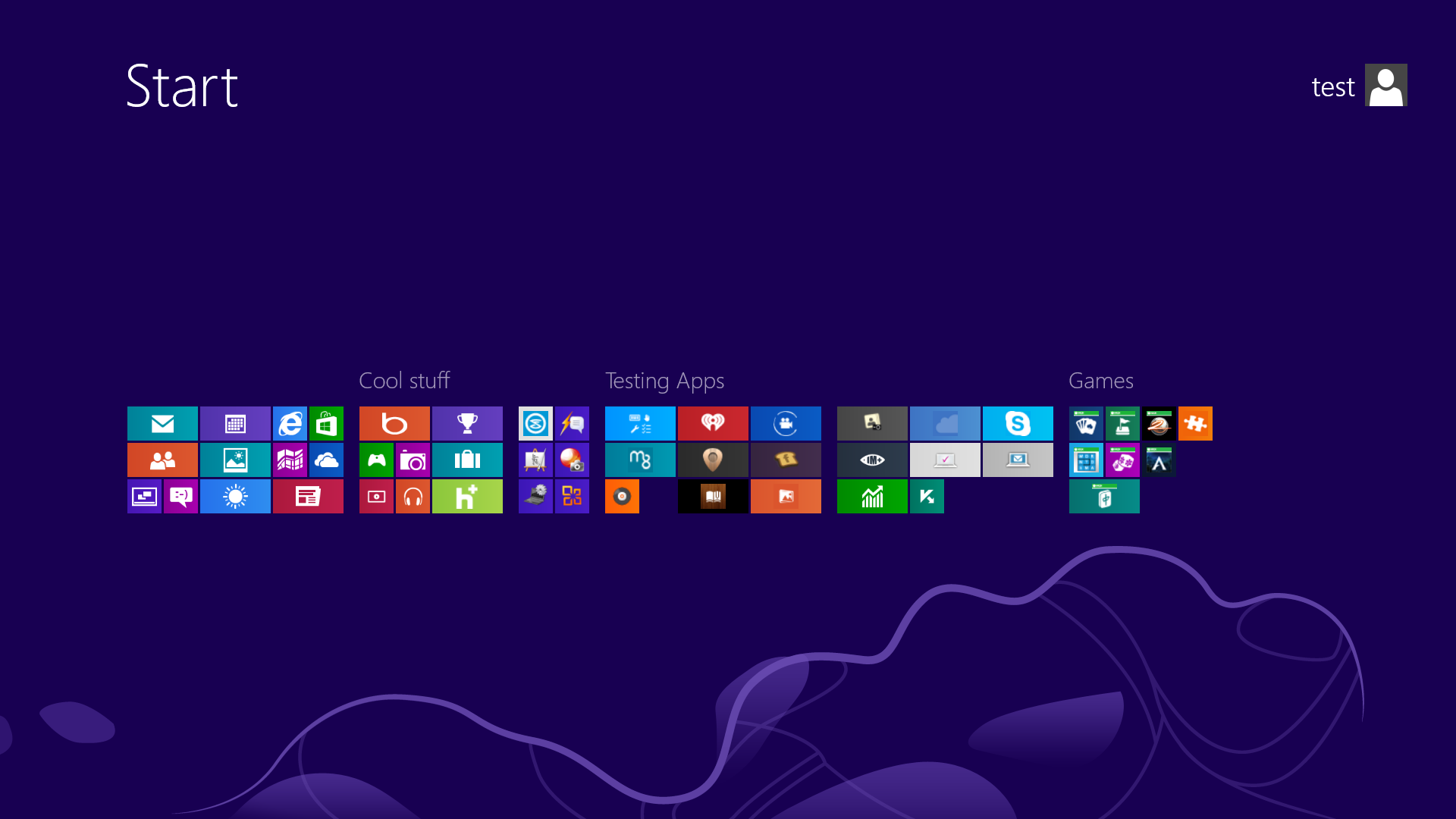
See all your tiles and groups at once with semantic zoom.
The Start Screen is full of nice, big, chunky tiles that represent all your apps. The tiles are easy to see in small groups, but what if you have hundreds of apps installed? Most will be hidden from view, unless you want to do a lot of scrolling. Enter the new semantic zoom feature. If you’re using a touch display, squeeze the Start screen with two fingers to receive a bird’s eye view of your entire screen contents. And the feature is also available to mouse and keyboard users: Simply hold down the Ctrl button, and use your mouse wheel to zoom in and out.

Categorize your apps

Start screen customization for the organized.
Your Start screen can become a cluttered mess if you collect too many apps and other elements that have been pinned to the screen as tiles, so take advantage of built-in organization tools that let you divide everything into labeled groups.
First, drag all the tiles you want to assign to a single group to the far right-hand side of your Start screen in vacant territory; the OS should sequester the tiles together. Once you're satisfied with your assembly, use semantic zoom (described above) to get a bird's eye view of your desktop. Now right-click the group (or simply drag down on it), and select the "Name group" option on the left of the bar that appears below. Type in the name, and enjoy your newly organized Start screen!

Close an application

Closing an app sounds simple enough, but you'll quickly notice that close buttons are hard to find in Windows 8. That's because Microsoft encourages us to run apps in the background where they'll take up minimal resources, but still be accessible at any time.
Nonetheless, if you insist on being rebellious, you can close an app by dragging it with your mouse or finger from the top of the screen all the way down to the bottom. As you drag, the app will miminize into a thumbnail, and when you reach the bottom, it will disappear from view. Alternatively, you can still close apps via Alt + F4 and through the Task Manager.

Use centralized, contextual search

Search for anything in any app from one place.
The Search function located on the Charms bar is packed with power, letting you search the directories of not only your Windows 8 machine, but also the greater Windows ecosystem. Simply choose the bucket of data you want to sift through—it could be all your installed apps, your system settings, your files, your mail messages, or even an external service like the Windows Store or Bing Maps—type in a keyword, and hit Enter. The Search function will then return the results, perfectly contextualized for the database you’ve addressed
Oh, and how's this for cool? You don't even need to hit the Charms bar to access Search. From the Start screen, simply start typing, and you'll be quickly whisked to the text-entry field for search queries. Try it. It works!

Adjust privacy settings
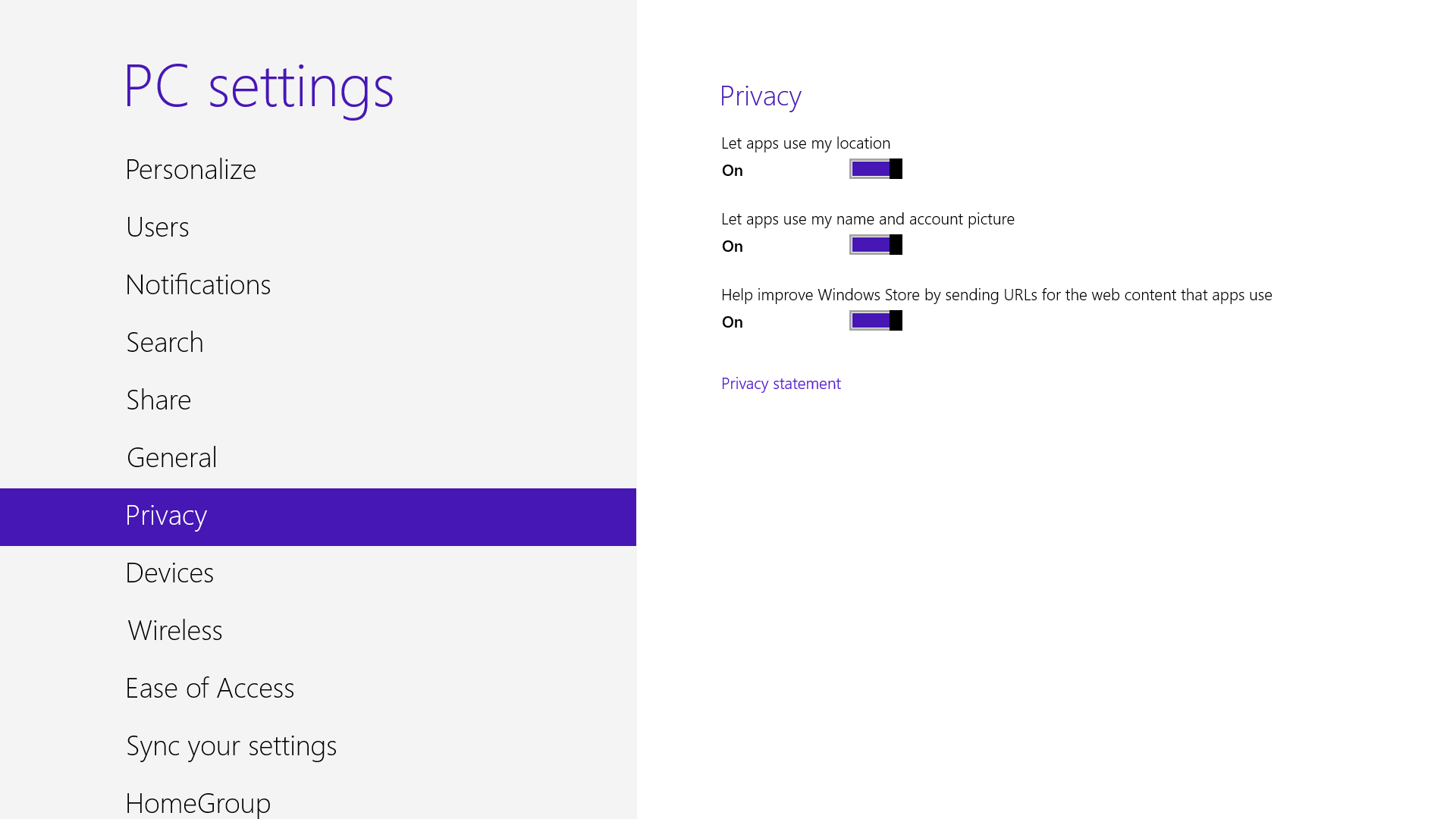
Customize your privacy settings to your liking.
A lot of apps tap into very personal information by default. Indeed, your pictures, location, and name are liberally woven throughout the system, and like many users you may not be comfortable trusting your machine with that much sensitive data. To adjust the settings, press the Windows key + I, and go to Change PC Settings. Select the Privacy option, and personalize the settings for your personal data there.

Adjust SmartScreen settings

Choose your own level of safety with SmartScreen.
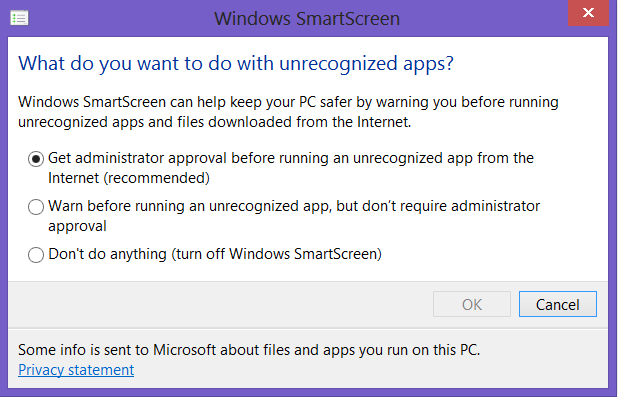
SmartScreen warns you before running an unrecognized app or file from the Internet. While it's helpful to be aware of a file's source, constant warnings can also get a little annoying. By default, you need an administrator's permission, but this can easily be adjusted to just a warning or no indication at all. Using the magic search function described above, type "security" at the Start screen and find the "Check security status" in the Settings tab. From this area, you can adjust various security settings, including the Windows SmartScreen.

Bring up the Quick Access Menu

The secret Start button for power users is hidden at the bottom-left.
Right-clicking on the lower left of the screen—whether you’re in the Windows 8 Start screen or in the desktop—will bring up the Quick Access Menu, which enables a direct line to many key system management chores, including Disk Management, Task Manager, Device Manager, and Control Panel.

Use Windows 8 apps and your desktop simultaneously

Because the Windows 8 experience is split between new Windows 8 Store apps and old-school desktop apps, the operating system is prone to some strange behaviors. Case in point: When running a multimonitor setup, Windows 8 apps will consume your main screen, leaving your secondary screen running the desktop. This arrangement would seem to allow full-screen multitasking among both types of apps—a modern app on the left side, a desktop app on the right side—but this isn’t the case. Indeed, as soon as you begin using the desktop on your secondary screen, the new-style Windows 8 app disappears, and your primary screen begins running the desktop.
But here’s a workaround. On your primary screen, use the new Windows 8 split-screen “snapping” function to run the desktop and a new Windows 8 Store app together. The desktop can take up the left-hand sliver, while the Windows 8 app consumes the majority of the screen. Now use your second display for a full desktop view. In this arrangement, you can fully multitask between new-style apps and desktop apps, and both windows will be large enough to be useful.

Go to Task Manager for Startup items
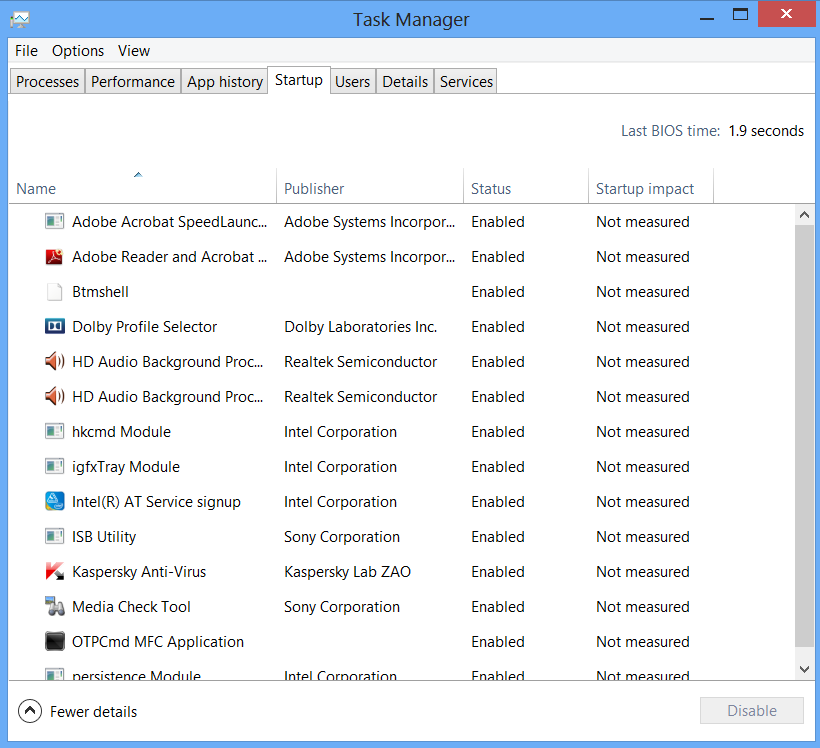
Task manager is more useful than ever.
You no longer have to run the MSConfig program to change startup items. Startup items now show up in a tab on Task Manager. Simply press Ctrl + Alt + Del and select Task Manager. Click the "More details" tab at the bottom and find the Startup tab at the top.

Share and share alike

Play with the Share charm in every app.
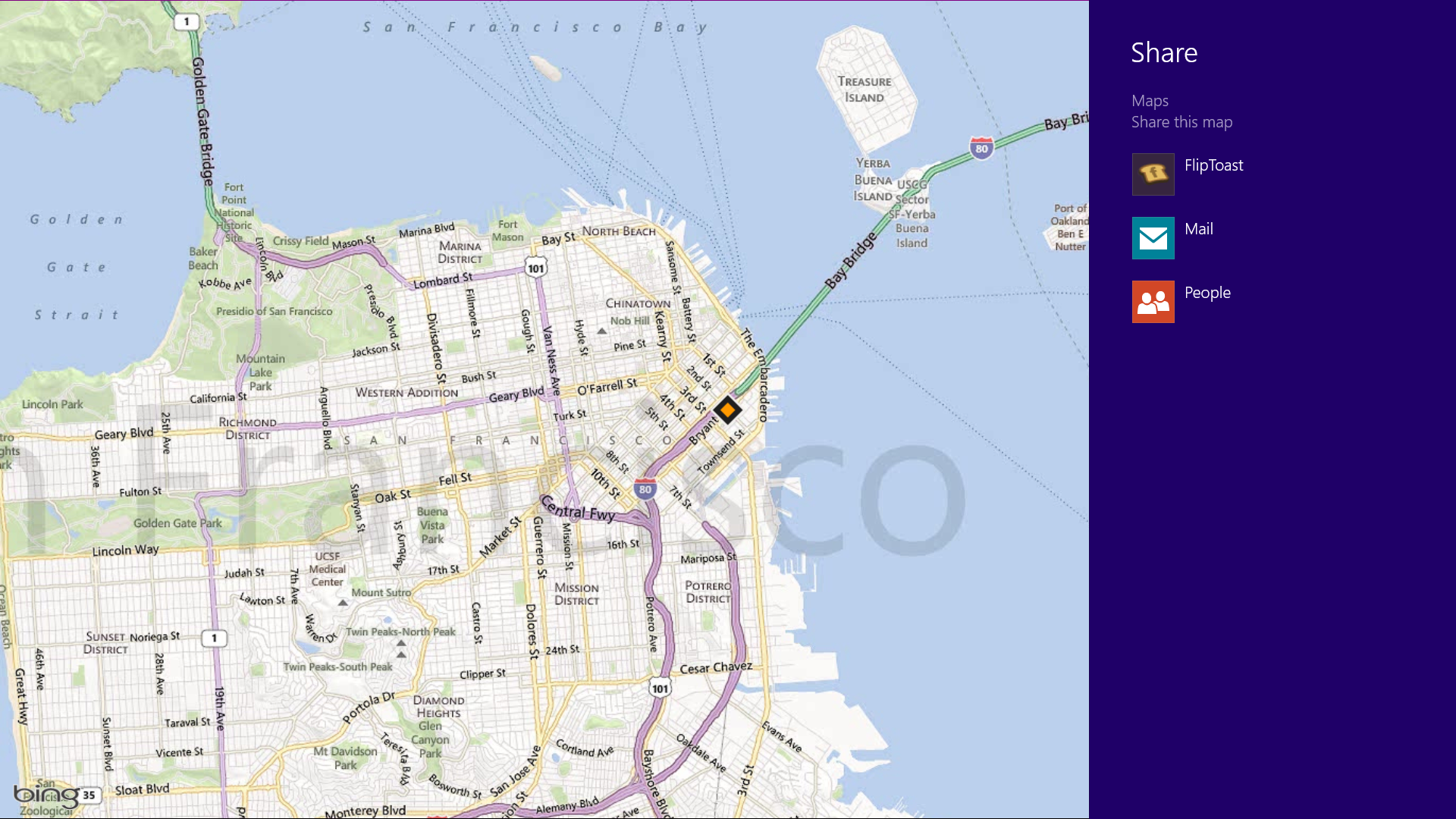
Windows 8 is Microsoft’s first social-media-aware PC operating system. Using the Share button located on the Charms bar, you can pick any number of elements from your Windows 8 Store apps—say, a location from your Maps app, a news story from the Finance app, or a even a contact from your People app—and then distribute that item to friends via other Windows 8 programs.
Perhaps most conveniently, you can quickly share a photo via email or Twitter, or to your own SkyDrive or Windows Phone. The Share button is contextual, and the more you use it, the more you’ll discover which apps share with each other, and which don’t. (Hint: None of your desktop apps offer sharing opportunities through the Charms menu.)

Create a picture password
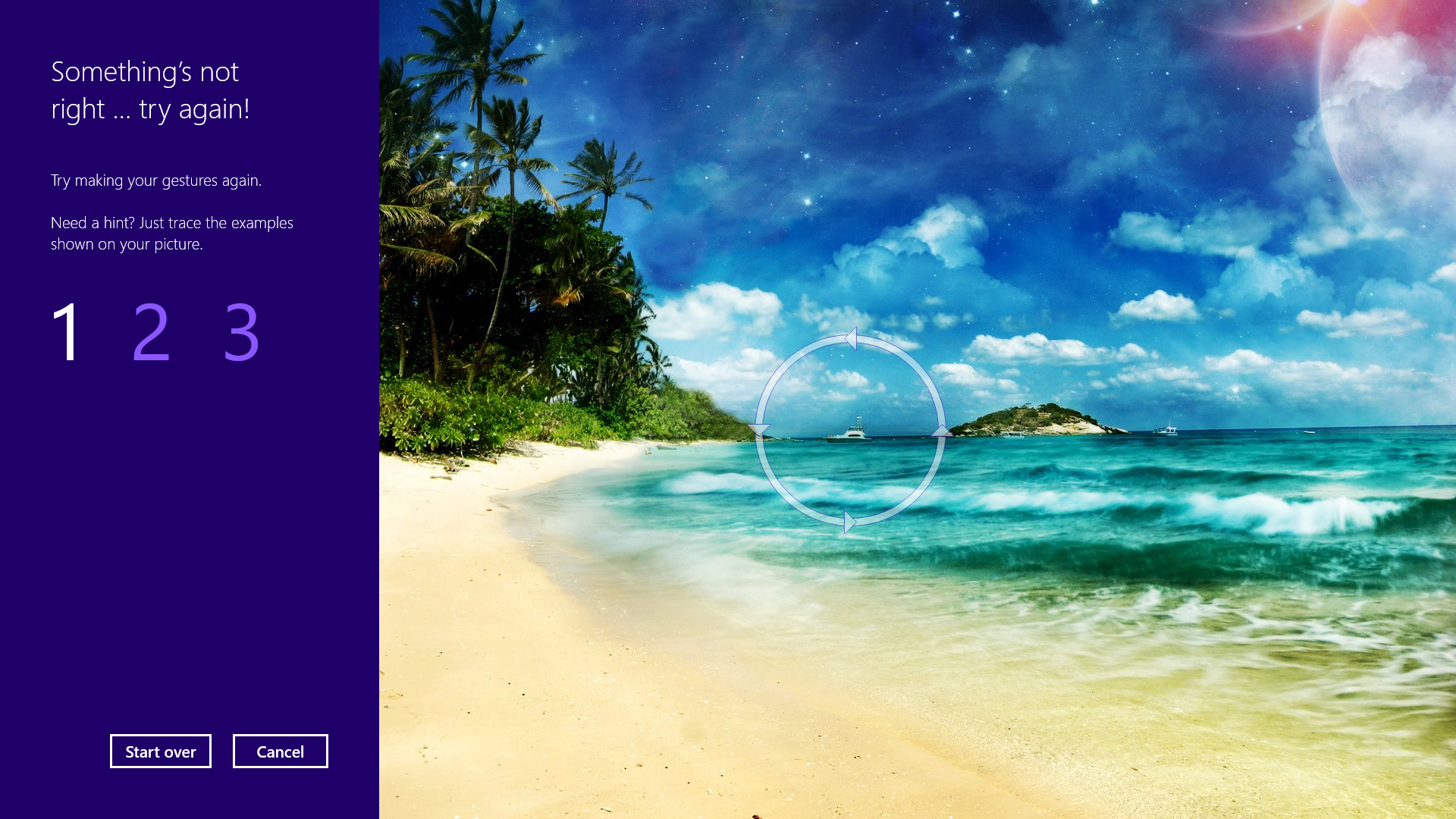
A fun way to protect your system.
Using a picture password is a fun way keep your device secure while not having to remember a complex password. To enable it, press the Windows key + I to get to the settings charm. Click "Change PC settings" at the bottom right, and go to the Users tab. Under "Sign-in options" will be the "Create a picture password" button. This will give you the option to choose any picture, and then define three gestures anywhere on the image. Your gestures can be circles, swipes and clicks.
For example, to set a picture password for the image above, you could click on the highest palm tree, draw a circle around the island, and then swipe down from the lens flare in the upper right. Just beware: The direction of each gesture matters! After confirming it a couple times, your picture password will be set.

Boot to the desktop without an app
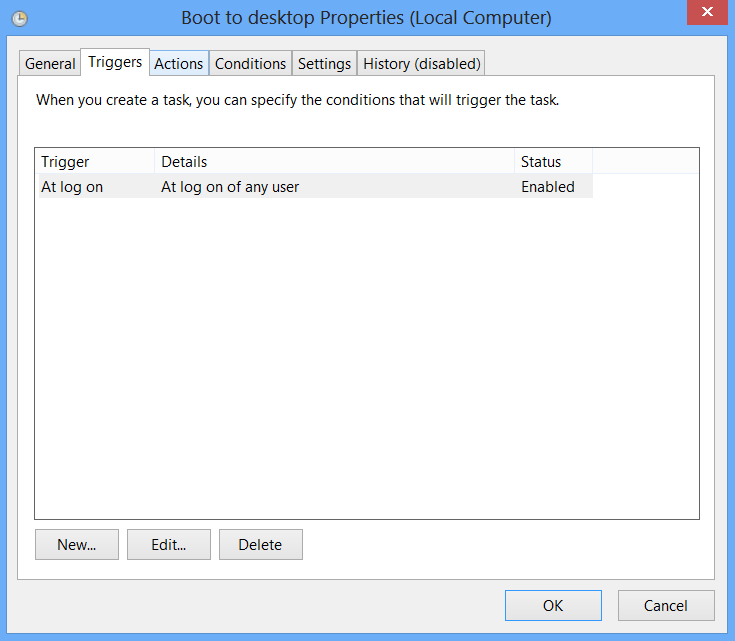
Skip the Start screen and get right to the Desktop.
One of biggest complaints about Windows 8 is that it boots straight to the Start screen—an annoyance for many committed desktop users. The Start8 utility helps you avoid this indignity (among other cool features), but you can actually boot straight to the desktop without installing anything extra.
Go to the start screen and type in "schedule" to search for Schedule Task in Settings. Click on Task Scheduler Library to the left, and select Create Task. Name your task something like "Boot to desktop." Now select the Triggers tab, choose New, and use the drop-down box to select starting the task "At log on." Click OK and go to the Actions tab, choose New, and enter "explorer" for the Program/Script value.
Press OK, save the task, and restart to test it out!

Log in without a username or password


To speed up the log-in process, you may want to disable the username and password log-in screen. You can do so by opening the Run window (press the Windows key + R) and typing in "netplwiz" to access the User Accounts dialog box. Uncheck the box near the top that says "Users must enter a user name and password to use this computer." Click OK, and enter the username and password one last time to confirm your choice, and you are all set for easy access to your system.

Refresh your PC

Enjoy a fresh PC without losing everything.
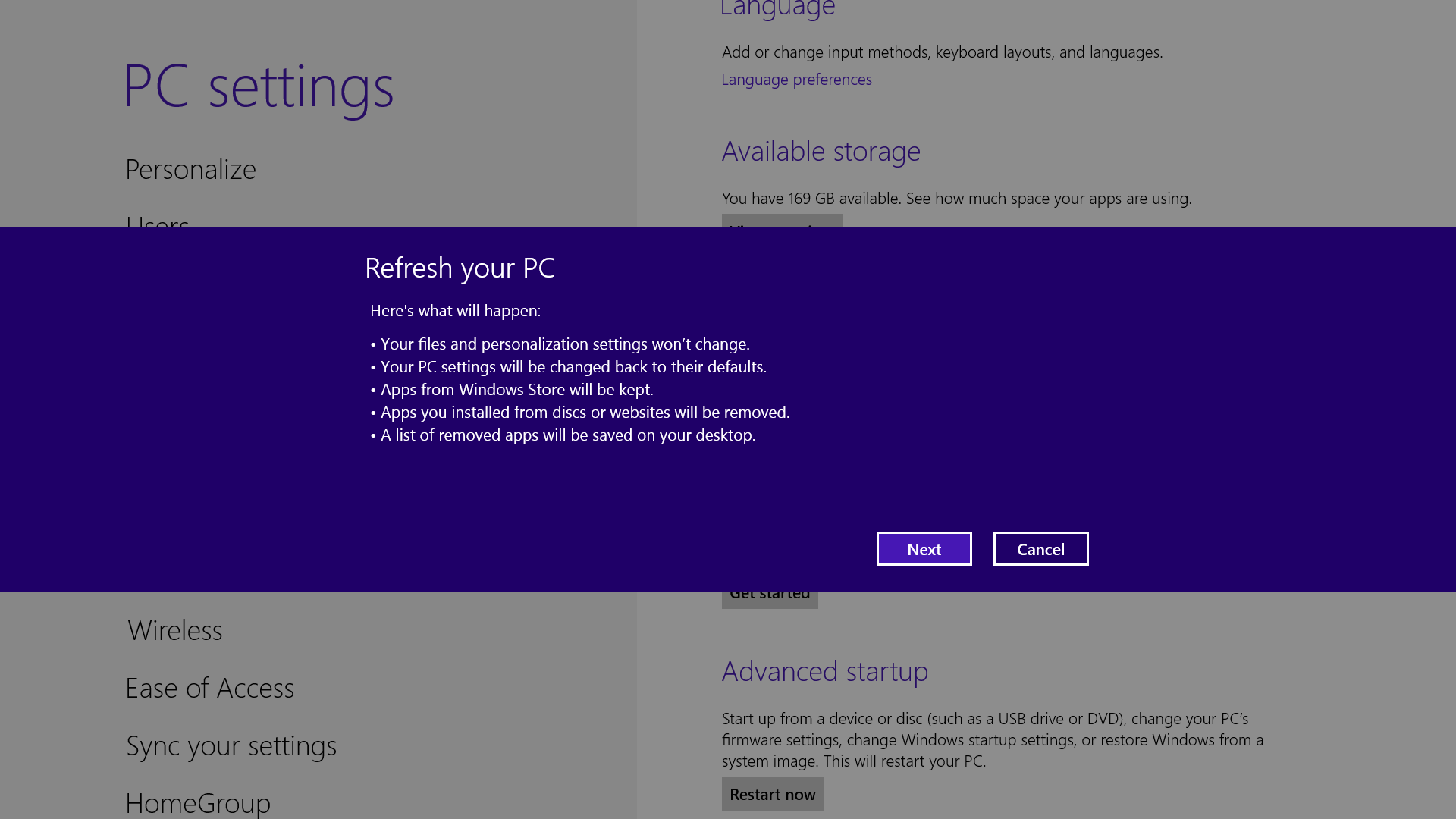
If your system is feeling a little sluggish, it may be time for a refresh. In the past we would have to find our copy of Windows 7, back up all of our data, and perform a fresh install to enjoy that back-to-factory-fresh feeling. But now Windows 8 allows you to perform a fresh install from within Windows without losing any data.
In order to perform the refresh, go to Settings and click the Change PC Settings tab near the bottom. Select the General tab and find the "Refresh your PC without affecting your files" section near the middle (you may also select "Remove everything and reinstall Windows" to get the true factory settings treatment). Select "Get started" and press "Refresh." After a few minutes the PC will restart, and you will have a fresh copy of Windows 8.

Start in Safe Mode

Safe Mode is a great way to get into your system when something won't allow you to start up normally. Troubleshooting becomes a breeze when corrupted drivers and files aren't loaded that prevents a system from functioning. It used to be as easy as pressing F8 when the system starts up, but doing so with Windows 8 will take you to Automatic Repair Mode. The trick to getting back to good old fashioned Safe Mode? Hold down the Shift key and press F8 while booting up.
This takes you to the Recovery mode. Select "advanced options," then "troubleshoot," then the "advanced options" again (there are a lot of advanced options). Select Windows Startup Settings and finally the Restart button. This will reboot the computer and give you the option to boot into Safe Mode.
If you need to get into Safe Mode from within Windows, open the dialog box (the Windows key + R) and type "msconfig" (no quote marks). Select the Boot tab and check the Safe boot box. The system will continually boot into Safe Mode until you go back and uncheck the box.

Turn Live Tiles on and off
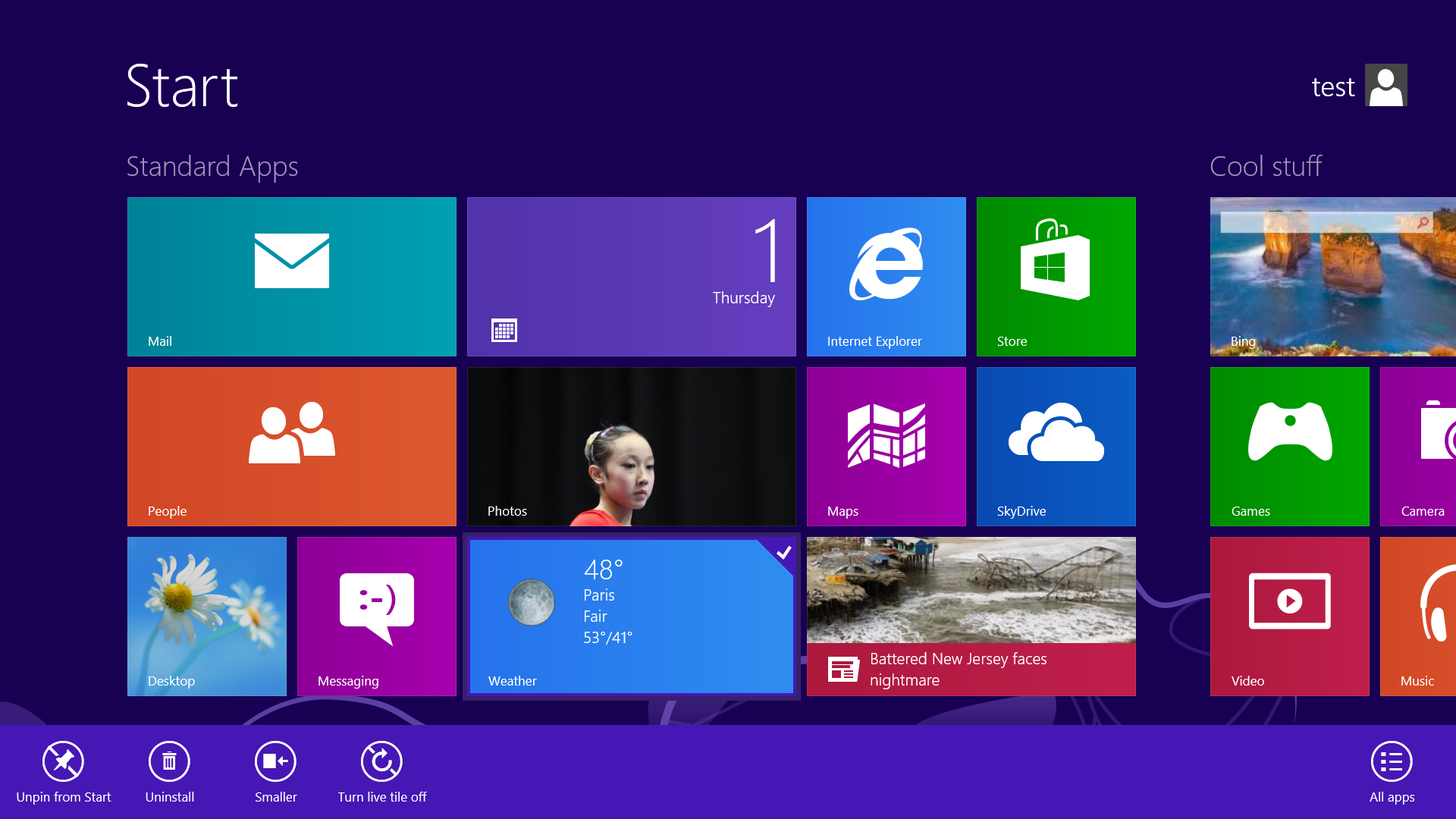
Use the Live tile option to customize what you want to see.
When looking at the plethora of tiles on your Start screen, the view can get stagnant, despite all the pretty colors.This is where Live Tiles come in. They offer real-time data right on your Start screen, and you don't need to open any apps. For example, the Weather tile will show you the current conditions, and Mail will show you the subject of the latest message you've received.
You can customize which apps are live and which aren't by right-clicking on the tiles. A settings bar on the bottom will pop up with an option to turn the Live Tile on or off. Simply select the preferred option, and you're all set. Note, however, that not all apps have a live, real-time data-streaming option.

Find the Windows games folder

Currently, the games folder used in Windows 7 isn’t present in Windows 8. Fear not; if you install any current-generation PC game that would regularly save to this folder, the folder is automatically created. For a quick way to find it, right-click on the game icon on the Start screen and choose “Open file location” at the bottom.

Activate Family Safety

Let your kids play without having to worry.
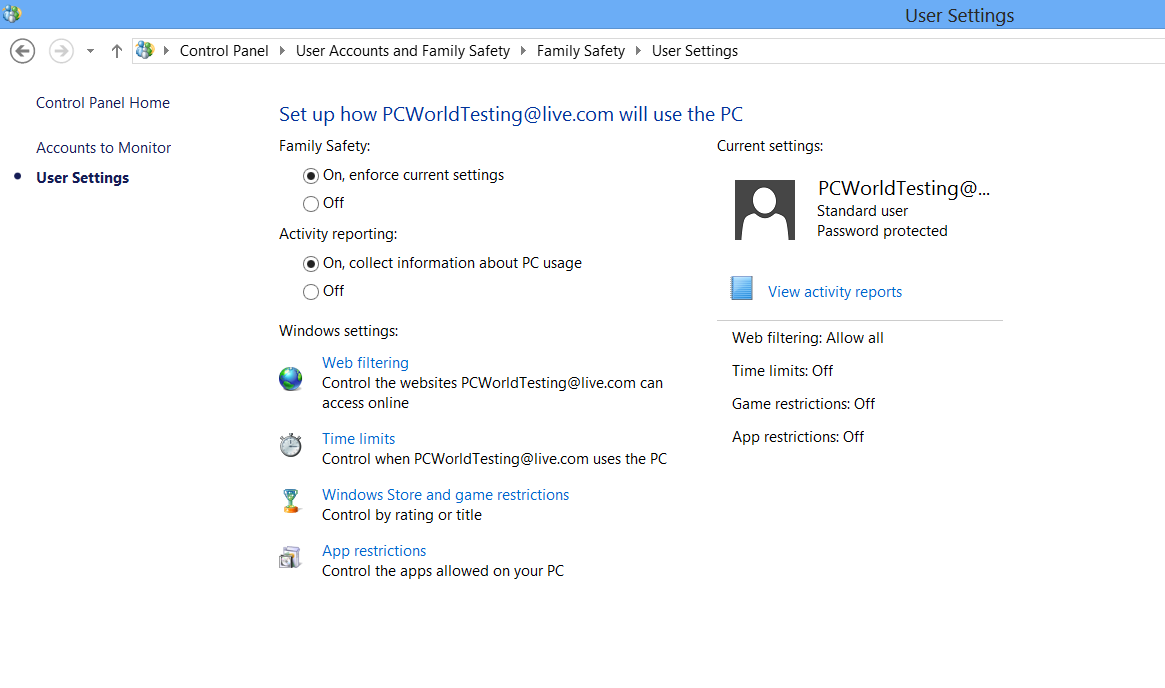
Want to avoid some nasty surprises on your credit card? Create a separate, standard account on the device for your kids (Family Safety can't be applied to an administrator account). You can activate Family Safety by going to the Control Panel, User Accounts, and Family Safety, and selecting the account you would like to apply it to. From these settings you can get reports on the account's activity; set a level of Web filtering; set time limits; and enforce Windows Store, game, and app restrictions.

Shut down with one click

Easy to create button to shut down.
Windows 8 hides the Power button in the Settings menu, forcing a multistep process just to shut down one's PC. But thanks to a crafty shortcut trick, you can pin a Shutdown button right onto the bottom of your desktop. Here's how.
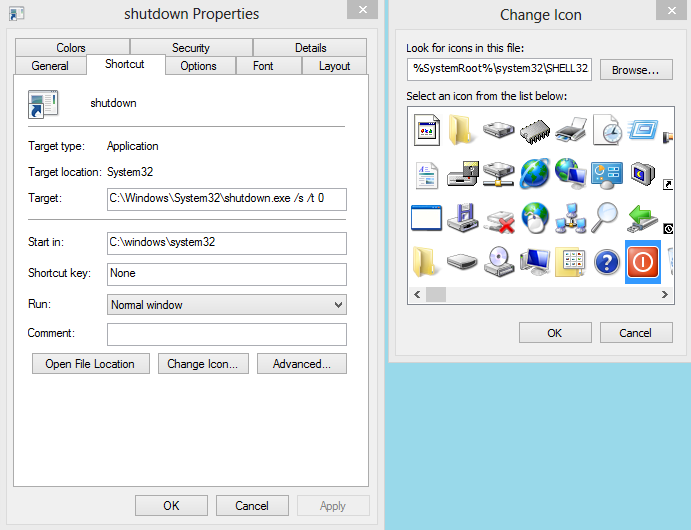
Create a shortcut on your desktop (right-click, go to New, then Shortcut). Enter "shutdown /s /t 0" (with no quotes, and, yes, that's a zero not an "O") as the location of the item, and press Next. Now name the shortcut (prefereably "Shutdown") and press Finish.
Right-click the shortcut, and navigate to Properties. Choose Change Icon in the Shortcut tab, and then OK to leave the warning box. Choose an icon of your choice from the list. In the screenshot above, you'll see we chose a Power button.
Right-click the shortcut again, and select Pin to Start. You can place the icon on your Start screen wherever it's convenient. Clicking it will instantly shut down your computer. 

Source: http://www.pcworld.com/article/2012885/20-must-know-windows-8-tips-and-tricks.html#tk.nl_win

11/09/2012

8 worst Windows 8 irritations (and how to fix them)


PCWORLD - Windows 8, I want to love you, but your annoying quirks keep bringing me down.
After spending more than a year conquering the operating system's overhauled (and nonintuitive) interface in its various prerelease iterations, I've now entered a second stage of frustration: I find myself cursing at Windows 8's major changes less and less, but shaking my fist and swearing like a sailor at its little irritations more and more.
Beyond its polished, tile-based surface, Microsoft's new operating system plays host to a legion of smaller annoyances—a cornucopia of quirks that will leave you seething long after you get the hang of all the new gesture controls and schizophrenic system options. Some of the problems are whoppers. Others are mere nitpicks that result from a lifetime of traditional Windows use. But many of these problems can be fixed, with one major exception. Read on!

Lock down the lock screen

Disabling the lock screen is but a hidden option away.
Let's start at the very beginning of the Windows 8 experience. Lock screens make sense on a tablet, but on a PC the lock screen becomes just another superfluous click in a sea of nonstreamlined Windows 8 controls. Fortunately, banishing the Windows 8 lock screen from your life is easy.
Open the Run command box by searching for "Run," pressing Windows-R, or moving your mouse pointer to the lower-left corner of the Desktop screen, right-clicking, and selecting Run in the Quick Access menu.
Now type gpedit.msc and press Enter to open the Local Group Policy Editor. Navigate to Computer Configuration > Administrative Templates > Control Panel >Personalization in the left menu. Double-click the Do Not Display the Lock Screen option in the main pane to open a new window. Select the Enabled radio button, click OK, and you're done. Buh-bye, lock screen!

Press Start to continue

Enough words have been written about Windows 8's missing Start button to fill the Library of Congress twice over, so I won't spend much time on it. But if you're looking to bring back the Start button and possibly even banish the live-tiled Start screen for good, check out the free (and awesome) Classic Shell program. We cover it in-depth in our roundup of free tools designed to bend Windows 8 to your will.

No POP for you!

That POP option in the Mail app? It's a trick.
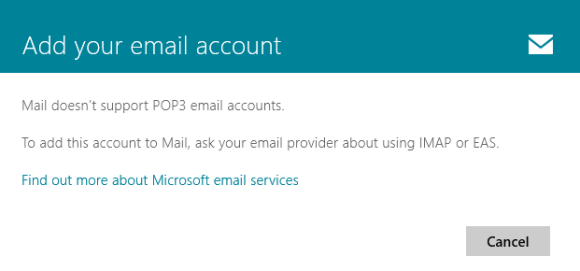
One of my biggest Windows 8 irritations is its lack of POP email support in the native Mail app. I get it, Microsoft: IMAP's syncing functionality fits better into the cloud-connected, work-everywhere vision you have for Windows 8. But tell that to all the nontechie people who lean on me for computer support, and who rely on the POP email addresses that their ISPs handed out.
If you're running Windows 8 and need to keep tabs on a POP email account, I first recommend downloading Mozilla's free Thunderbird email application and using it in Desktop mode. But if you don't want to do that (or if you're running Windows RT), you have a workaround for Microsoft's POP reluctance, though it's somewhat clunky.
The key lies in the Mail app's support for popular webmail clients, including Gmail and Outlook.com—two free favorites that just happen to be able to connect and link with outside POP email accounts. See where I'm going here? Just create a free email account with either service, and then link your POP mail account to it using the tutorials supplied by Outlook.com or Gmail.
After persuading your POP account to play nice with your Outlook.com or Gmail account, add your chosen webmail service to the Windows 8 Mail app through the normal means. VoilĂ ! Your POP mail will work its way into the Mail app inbox by way of its webmail proxy.
Here's the kicker: When you send email, the Mail app will let you use only your webmail email address, not your POP mail address. There isn't any way around the limitation, but at least your messages will land in your inbox.

No DVD playback? No problem!

VLC's myriad media options include full DVD playback.
Windows 8 still includes Windows Media Player, but the new version of the program lacks DVD playback support. If you've yet to take the plunge into a digital-only lifestyle, you could spring for Windows 8 Pro and the optional $10 Media Center Pack (which Microsoft is giving away free to upgraders until January 31, 2013). This is one solution, but I recommend downloading the free and flexible VLC instead.
VLC isn't as polished as Microsoft's Media Center software, but it's jam-packed with utility, offering full DVD playback and ripping support, robust file-transcoding options, the ability to tune in to Internet videos and podcasts alike, and even spotty Blu-ray support if you enlist the help of add-ons with questionable legality. Our guide to mastering VLC will get you up and watching in no time—and for no money.

Just what do you think you're doing, Dave?

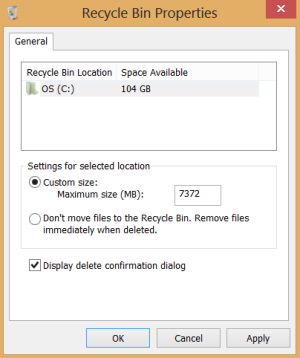
The Recycle Bin properties screen.
Unlike HAL (and Windows 7), Windows 8 isn't pleading or pushy when you want to get rid of a file. Deleting something sends the item straight to the Recycle Bin, no confirmations necessary. Ironically, this may be the one case when you can perform a task in fewer clicks than you could in previous iterations of Windows. That said, the old-style confirmation prompt has saved me from errantly deleting something important on more than one occasion.
If you want to bring back the warning, right-click the Recycle Bin and select Properties. Simply check the Display delete confirmation dialog box in the new window, click OK, and you're good to go. Getting rid of the option is as easy as removing the checkmark once again.

Forget the Bing app

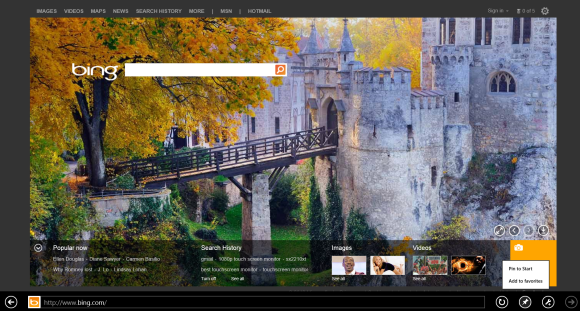
Skip the Bing app, and pin the Bing website instead.
I'm a Google fanatic, but when I'm tooling around in Windows 8's Start screen on a touchscreen device, I find that the Bing search app's picture-heavy aesthetic fits very nicely with Windows 8's Modern design. Like many Modern-style apps, however, the Bing app includes an irritating quirk: Selecting a search result pops you out of the Bing app and opens the page in Internet Explorer. It's a mild annoyance in the grand scheme of things, but it still drives me nuts.
You can have your attractive cake and eat it too by pinning the Bing.com website to the Start screen. Head to Bing.com, click the Pin This Site icon in the toolbar, and then select Pin to Start. Annoyance averted.

Higher resolution, lower readability

Desktop image sizing options: Not just for the hard-of-seeing.
Windows 8 has spurred a whole new hardware type: the laptop-tablet hybrid. Many of these devices sport 1080p IPS displays that are breathtaking to behold. I've had the opportunity to test a few hybrids extensively, and I've found that the blessing of a high-resolution display comes with an accompanying curse.
Many convertibles stick to an Ultrabook-type form factor, squeezing that 1080p resolution into a 10- to 12-inch screen. The ultrapacked pixel density makes for a razor-sharp picture, but text appears a bit too small for my taste in desktop mode. Fortunately, a trick that helped farsighted folks browse with ease in Windows 7 still applies in Windows 8.
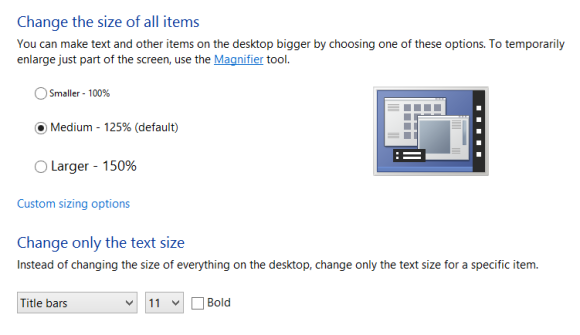
Right-click anywhere on the desktop, select Screen Resolution, and then click Make text and other items larger and smaller. The Change the size of all items option works great if you plan on sticking to a touchscreen interface, boosting the size of icons and text alike to make them finger-friendly. I prefer using the Change only the text size option on hybrid-type devices that include a touchpad or mouse, however. The drop-down menu includes a bevy of text types, each of which you can individually alter to suit your particular needs.

The one that got away

That's the avatar face of anger.
Unfortunately, Windows 8's single-most oppressive annoyance can't be fixed by minor tweaks, or—as I was told after spending hours on the phone with multiple support representatives—by Microsoft itself.


I'm a huge proponent of the system's ability to transfer basic settings and files between multiple computers with the help of a cloud-connected Microsoft Account. I've accumulated several Microsoft Accounts over the years, however. One exists solely to maintain my Xbox Live gamertag, with more than six years' worth of achievements, Microsoft points, and associated purchases tied to it. Another Microsoft Account plays host to my grandfathered 25GB SkyDrive account, and all the files inside. I rely on a third as my primary Microsoft Account login.
There is no way to merge the multiple accounts into a single, comprehensive Microsoft Account.


The aforementioned support calls proved unhelpful in clearing up the issue. Taking to the Internet, I found this July 2012 forum post by a Microsoft representative stating that the company has no plans to introduce an account-merging option. "I think it would be a nice feature, but it was repeatedly assessed as too costly compared to other needs," he said.


That sucks for a long-term Microsoft fan like myself, especially since I jump from computer to computer frequently. I've resigned myself to the fact that I need to juggle three separate Microsoft Accounts in order to keep full functionality. Signing out of my main account and back in with my secondary accounts on the SkyDrive and Games apps doesn't take long, but it's frustrating, all the more so because I won't have any way to fix this particular irritation at any time in the foreseeable future.

Ah, well. You can't win 'em all, I guess.

Source: http://www.pcworld.com/article/2013667/8-worst-windows-8-irritations-and-how-to-fix-them.html

10/29/2012

6 Start Menu Replacements for Windows 8

from the Howtogeek.com


Want a Start menu on your Windows 8 desktop? While Microsoft no longer includes the Start button, opting instead for a click in a hidden corner and a new Start screen, there are quite a few Start menu replacements you can choose from.

You can try living without the Start button and customizing your Start screen – it’s very possible to get by without the Start button and some people seem to prefer the new interface – but you have a choice.
Many of these tools also allow you to boot directly to the desktop and hide the charms and app switcher that appear when you move your cursor to the corners of the screen, giving you a more traditional desktop experience.


Classic Shell

Classic Shell is a free, open-source Start menu replacement. It includes skins that can mimic the Windows 7/Vista, Windows XP, or Windows 2000/98 start menus and is extremely configurable. If you’re using Ninite to set up your new computer with the software you like, you’ll find that Ninite can now install Classic Start.
For a more in-depth look at Classic Shell, read How To Log Into The Desktop, Add a Start Menu, and Disable Hot Corners in Windows 8.


Start8

Stardock’s Start8 offers a Windows 8-style Start menu in addition to a Windows 7-style Start menu. Unlike Classic Shell, Start8 isn’t free – while there’s a 30-day free trial, you’ll have to pay $5 if you want to use Start8 long-term.
Start8′s Windows 7-style Start menu is a more accurate reproduction of Windows 7’s Start menu than Classic Shell’s.


Start8′s Windows 8-style Start menu isn’t too shabby, either – it feels similar to the new Start screen, but you can use it without going full-screen.


IOBit StartMenu8

Try IObit StartMenu8 if you’re disappointed by Classic Shell and don’t want to shell out $5 for Start8. IObit StartMenu8 is completely free and works more similarly to the Windows 7 Start menu than Classic Shell does.


Right-click the StartMenu8 icon and you’ll find many of the more useful options for using your computer as a traditional desktop, including the ability to skip the Start screen at login, hide the charms sidebar, and disable the other hot corners.


Make Your Own Start Menu

Using the Windows taskbar’s support for “toolbars” that can display the contents of a folder, you can create your own Start menu replacement without installing any third-party software.
For instructions, check out How to Get the Classic Start Menu Back in Windows 8.


Pokki

Pokki is primarily an “app store” for Windows, but it also offers a Start menu for Windows 8. Unlike the other Start menus here, Pokki doesn’t try to copy Microsoft’s Start menus exactly. It has a different design, which you may or may not prefer. There are separate categories for your applications and settings and you can also pin your most-used programs to the Favorites section.


ViStart

There’s also ViStart, which was one of the most talked-about Start menus when the first preview releases of Windows 8 were released with no traditional Start menu. Unfortunately, ViStart’s installer is now full of useless toolbars and other junkware – we can’t recommend ViStart when the other Start menus here work so well.

The third-party Start menu ecosystem is flourishing. Samsung and Toshiba are even writing their own Start menus – Samsung Quick Starter and Toshiba Desktop Assist – and including them with their Windows 8 computers. It’s very possible other PC manufacturers will follow.

Source: http://www.howtogeek.com/127699/6-start-menu-replacements-for-windows-8/?utm_source=newsletter&utm_medium=email&utm_campaign=291012

10/26/2012

How To Log Into The Desktop, Add a Start Menu, and Disable Hot Corners in Windows 8


From the HowToGeek.com


If you don’t have a touchscreen computer and spend all your time on the desktop, Windows 8’s new interface can seem intrusive. Microsoft won’t allow you to disable the new interface, but Classic Shell provides the options Microsoft didn’t.
In addition to providing a Start button, Classic Shell can take you straight to the desktop when you log in and disable the hot corners that activate the charms and metro app switcher.
There are other programs that do this, but Classic Shell is free and open-source. Many of the alternatives, such as Start8 and RetroUI, are commercial apps that cost money. We’ve covered Classic Shell in the past, but it’s come a long way since then.

Installation

You can download Classic Shell from Sourceforge. It isn’t just a Start menu – it also adds some other features that have been removed from Windows 8. The Classic Shell installer also includes Classic Explorer, which adds a toolbar to Windows Explorer, and Classic IE9, which adds a few features to Internet Explorer 9.
To avoid cluttering File Explorer and Internet Explorer, you can disable both of these options during the installation process.


Start Button

After installing Classic Shell, you’ll see a Start button in the familiar place. Pressing the Windows key will activate the Classic Shell start menu, just as you’d expect.


Classic Shell uses the Windows Classic layout – which imitates Windows 2000 and Windows 98 – by default. There are also Windows 7 and Windows XP styles you can choose.


Whichever interface you’re using, the search box will search through your installed programs, so you can quickly launch programs by searching, just as you could on Windows 7 and Windows Vista. Unlike the new Start screen, searching in Classic Shell will display applications and control panel applets in the same list – you don’t have to select another area to search if you’re looking for Control Panel settings.


Disabling the Modern Interface

Classic Shell will automatically log you directly into your desktop and disable the bottom left Start screen hot corner when you install it. This still leaves the app switcher (which only works for Modern apps) in the top left corner and the charms bar at the right side of your screen. if you’d rather not see these while using our desktop, you can disable them from Classic Shell’s settings.
To tweak these settings, select the All Settings option at the bottom of the Classic Start Menu settings window and click the Windows 8 Settings tab. From here, you can tell Classic Shell to disable all active corners.
You can still access the charms bar and app switcher using Windows 8’s hotkeys, if you like. Press Winkey+C to access the charms and WinKey+Tab to access the switcher.


Note that the “Skip Metro screen” option isn’t perfect – when you log in, there’s a slight delay while the Start screen Is still visible before Classic Shell opens your desktop. Microsoft went out of their way to make logging directly into the desktop hard.
However, if you lock your computer instead of logging out, you’ll see the desktop when you log in — so you’ll only have to see the Start screen for a second if you shut down or log out of your computer.

Customization

Classic Shell is a tweaker’s dream. It’s filled with options for controlling everything about the Start menu and Start button, including support for custom Start button images and skins.
For example, you can select a Metro-style skin on the Skins tab and a Metro-style Start button image on the Start Button tab to make Classic Shell feel more at home in Windows 8. The other tabs are packed with options for controlling every inch of your Start menu.


To open the settings screen in the future, you can right-click the Classic Shell Start button and select the settings option.

There are quite a few good improvements in Windows 8: faster startup times, a much-improved file-copying experience, a great new task manager, and more. Classic Shell allows users that prefer the desktop to avoid a lot of the new interface formerly known as Metro, but still use Windows 8.

Source: http://www.howtogeek.com/127450/how-to-log-into-the-desktop-add-a-start-menu-and-disable-hot-corners-in-windows-8/

10/19/2012

Start Menu being added by Samsung & Others


Several vendors announced tweaks in the Win8 Customer Preview to add the Start menu button back to Windows 8. Stardock and Samsung are some of the firms announcing they are adding the Start menu to their Win8 installations or products. Below is info on both of them. It was just a mater of time. I would not be surprised to see a free hack in the future. The Stardock product includes an option to boot directly to the desktop. Nice touch and at $5- the price is fair. Stay tuned.


You can get it here:
http://www.stardock.com/products/start8/index.asp?ref=start8_release_promo_getitnow&utm_source=StardockSoftware&utm_medium=email&utm_term=10162012&utm_content=Start8+GA+Announcement


Samsung brings back the ‘Start’ menu in Windows 8 with free app

1 Star2 Stars3 Stars4 Stars5 Stars (No Ratings Yet)
By pavan.kumar ,Thursday, October 18th, 2012 Tags: , , , , , , , , , , , ,
Samsung brings back the Start menu in Windows 8 with free appIf you don’t want to miss the ‘Start’ menu button on the upcoming Windows 8 operating system, you can opt for any of the computers that have been recently unveiled by Samsung. Samsung is offering a free app that mimics the classic ‘Start’ menu for its Windows 8 laptops and tablets.


The pseudo-Start menu — dubbed Quick Starter (previously known as S Launcher) — from Samsung will be available as a downloadable app on the Series 5 and Series 7 Samsung slates. The app was earlier due to ship with new Windows 8-based Samsung machines. However, it will be now available as a free download when the new range of Samsung computers hit store shelves.


According to a Samsung representative, “The Quick Starter app provides a taskbar that can open different applications and a ‘Start’ menu that will have the same look and feel of the Windows 7 ‘Start’ menu. Quick Starter is a feature new to Windows 8 and is designed to provide users with a ‘choice of interface’ and ‘a familiar navigation scheme’.”
The newly introduced range of Windows 8-powered Samsung PCs and tablets are now available for pre-order at Samsung’s official website and will be available in retail stores after October 26. The new Quick Starter app is not yet available for download, but once the new Windows 8-based Samsung devices get into the hands of consumers it will start popping up.

Source: http://windows8.iyogi.com/news/samsung-brings-back-the-start-menu-in-windows-8-with-free-app.html

8/29/2012

UG Win8 Preview to RTM

Bloggers show how to upgrade Windows 8 previews to RTM

Microsoft said it's not allowed, but an old trick still works, say IT pros

August 21, 2012 05:27 PM ET
Computerworld - Users of Windows 8 Release Preview can do a full upgrade to the final code, something Microsoft said was impossible, an IT consultant said today.
Microsoft has been clear that the Windows 8 previews were a dead end.
"There is no upgrade path from Windows 8 Consumer Preview or Windows 8 Release Preview to the Released-to-Manufacturing (RTM) version of Windows 8," Microsoft said in an FAQ posted on the company's TechNet support site. "If you have already installed Windows 8 Consumer Preview or Windows 8 Release Preview, you will be required to perform a clean install. The installation process will automatically create a 'Windows.old' folder that contains all files from your Windows 8 Consumer Preview or Windows 8 Release Preview installation."
A "clean" upgrade is the least effective migration, since it does not retain applications, user accounts and settings, and moves data files -- Word documents and Excel spreadsheets, for example -- to a special folder.
A Windows 7-to-Windows 8 upgrade, on the other hand, preserves virtually everything, from programs and user accounts to Windows' settings and files stored in default locations.
Denny Cherry, a senior database administrator, independent IT consultant and as "Mrdenny," a blogger for the IT Knowledge Exchange, recently posted instructions on how to fool Windows 8 RTM into upgrading the sneak peaks Microsoft offered users earlier this year.
The workaround -- which relies on editing the "cversion.ini" file in a downloaded copy of Windows 8 RTM -- tricks the installer into accepting upgrades from February's Windows 8 Customer Preview and May's Release Preview.
"Cversion.ini tells the installer the minimum build it can overwrite," said Cherry in an interview Tuesday. "By changing the version number there, it's allowed to overwrite the previews."
The cversion.ini file is only used to block previews of the final operating system; changing it does not affect the ability of Windows 8 RTM to upgrade Windows XP, Vista or Windows 7.
Cherry wasn't the only one who remembered that the same trick had worked three years ago when users wanted to upgrade from Windows 7 Release Candidate to the 2009 OS's final code.
Jason Fay gave the same advice as Cherry on his blog, and said he was able to upgrade Windows 8 Release Preview to the RTM bits without problems.
But he did have one caveat. "Keep in mind that this is not supported, and could end up with a catastrophic failure if some bits are not properly upgraded," said Fay. "But 12 hours in, and things seem stable."
Cherry said his upgrades were identical to those promised by Microsoft for Windows 7 users. "It's a traditional upgrade [that retains] all the settings and applications," he said. The only glitch he encountered was with Cisco's VPN Client, which required reinstallation on Windows 8 RTM.
cversion.ini
Changing the numbers in one file of the Windows 8 RTM installer lets users upgrade from Windows 8's free previews.
Although Cherry did not test the upgrade trick with a copy of the Windows 8 Enterprise 90-day trial, he expected that would work just as smoothly as to a perpetual license of Windows 8, like those Microsoft released last week to TechNet and MSDN subscribers, and to enterprises with Software Assurance plans in place.
Because the Windows 8 previews will expire on Jan. 15, 2013, users who want the longest free ride can wait out the next five months with Release Preview, then -- assuming the free eval is still available -- upgrade to the trial next January for three more months of use.
covers Microsoft, security issues, Apple, Web browsers and general technology breaking news for Computerworld. Follow Gregg on Twitter at Twitter @gkeizer, on Google+ or subscribe to Gregg's RSS feed Keizer RSS. His email address is gkeizer@computerworld.com.
See more by Gregg Keizer on Computerworld.com.
Read more about Windows in Computerworld's Windows Topic Center.

Source: http://www.computerworld.com/s/article/9230479/Bloggers_show_how_to_upgrade_Windows_8_previews_to_RTM?source=rss_operatingsystems&utm_source=feedburner&utm_medium=feed&utm_campaign=Feed%3A+computerworld%2Fs%2Ffeed%2Ftopic%2F125+%28Computerworld+Windows+News%29

8/04/2012

How to get the Start Menu back in Win8


The Windows 8 Dev Build is great, but the Metro UI has more than a few quirks. If you want to run IE 10, and still have a Start Menu, (or be able to find your programs after you install them) then you need to make this small change to the registry.

WIN+R and then type REGEDIT and press enter.
browse to
HKEY_CURRENT_USER\Software\Microsoft\Windows\CurrentVersion\Explorer
select RPEnabled and change the value from 1 to Zero

You can still toggle between the two by using the windows key.

http://www.youtube.com/watch?v=0CAuvlmPbJE&feature=related

There is also an automated fix to apply. Info about it here:
http://www.youtube.com/watch?v=BWrgOt3MaK8&feature=related 

Another free program will add the Win7 Orb as well here:

ViStart: http://lee-soft.com/vistart/
or
Start8: http://www.stardock.com/products/start8/

And you can download the automated fix directly here:
http://browse.deviantart.com/?qh=&section=&q=classic+start+menu#/d4rj3a6


8/02/2012

What to expect from the Windows 8 rollout


Woody LeonhardBy Woody Leonhard
On the first day of August, Microsoft announced that its final, final version of Windows 8 is ready. (The announcement came just as the this newsletter was about to be sent out.)

Drawing on the announcement and a little bit of history, here's what's likely to happen as Windows 8 makes its way to store shelves.

Final code: Windows 8's RTM and what follows
As just announced in a Microsoft Windows blog, Windows 8 has reached released to manufacturing (RTM). Many of you have written to me — asking what, precisely, that milestone means. Let me try to answer that by blending some previous Windows-launch history with what we expect will happen this time around.
RTM is a specific version — a specific build — of the product. It isn't a date. Once upon a time, RTM was the version Microsoft declared as finished (or gold), signifying that it could be shipped to the CD manufacturers (thus "to manufacturing") who would duplicate the discs, stick them into shrink-wrapped boxes, and ship them to retailers.
Windows 8 RTM is different from previous releases of Windows. In particular, there's no "manufacturing" in the sense of shrink-wrapped boxes. The blog makes it clear that Microsoft will dribble out the Win8 RTM code to developers (via MSDN and TechNet), PC manufacturers, and corporate customers though August. General release is still set for Oct. 26.
Soon after the RTM version is set, hardware manufacturers (OEMs) will run final tests and start manufacturing new Windows 8 PCs. Historically, soon after OEMs receive the finished code, leaked copies start showing up in public. (Microsoft's largest customers also get gold code about the same time as OEMs, providing another source for leaked code.)
Starting Aug. 15, anyone with a MSDN or TechNet subscription will be able to download the Windows 8 RTM code. (I talked about TechNet in a July 1, 2010, column.) I bet that, within a day or two of Win8's appearance on the MS tech sites, more than a million copies will be out in the wild.
Distributing Win8: The end of the box?
Most of us who upgrade to Win8 from Windows XP, Vista, or Win7 will buy a product key and then use the "online-upgrade experience" to move up to Windows 8 — all you need is an upgrade key and an Internet connection.
Given past Windows releases, it's easy to be skeptical about the ease of upgrading a new version of Windows on top of an older one — and the quality of the new OS after an in-place installation. For decades, I recommended avoiding in-place upgrades and performing only clean installs of new Windows versions. But the Windows 8 online-upgrade process is a finely engineered combination of compatibility checking, data backup and restoration, and OS upgrade — with a bit of driver magic thrown in.
After going through an update-compatibility scan and giving you a chance to back up anything that won't be handled automatically, the online-upgrade system downloads only those files needed to perform the upgrade. The process is almost entirely automated, and you can ask the installer to create a custom, bootable, Win8 installation DVD just in case.
As yet unknown is Microsoft's Win8-installation solution for PC users still using dial-up connections to the Internet. I also hope Microsoft has a reasonable solution for anyone unknowingly running a pirated copy of Windows.
And what are the options if you're not upgrading from an older Windows version? For those who prefer building their own PC or who are installing Win8 on a Linux (or non-upgradeable) system — or who are setting up a dual-boot configuration with Windows, Mac, or Linux — Microsoft reportedly will offer a System Builder edition. (Ed Bott has an excellent overview on his ZDNet blog.) There's no announced price for Win8 SB, but it could be a boon for those of us who've dealt with Windows licensing inanities over the years. Chances are good that the Win8 versions posted on MSDN and TechNet will be System Builder editions.
General availability: Win8 is offered to all
As noted above, Windows 8 and Windows RT will hit general availability on Oct. 26. In the days of CD and DVD installations, the "general availability" date was something of an artificial construct — it could take days or weeks for retail stores to keep up with the initial demand. But with online installation, Oct. 26 could truly be the day Microsoft opens the floodgates (assuming its servers can keep up with demand).
Microsoft isn't taking any chances with the Win8 launch, from a price perspective. It announced a special promotion: from general availability through the end of January 2013, many Windows users will be able to purchase the Win8 Pro upgrade for U.S. $40. (Microsoft promised a packaged DVD version for $70.) As a bonus, if you use the promotion, you can add Windows Media Center for free.
(Some in the media claim that this is the cheapest version of Windows in recent history. Hogwash. Windows 8 might go up in price after January (or Microsoft might extend the special price indefinitely). Right now, you can buy a three-pack of Windows 7 Home Premium upgrades from Amazon for $118. But I digress.)
It appears that Microsoft really has trimmed the "versionitis" that has haunted Windows for years. Here's what I think Microsoft will offer:
  • Windows 8 online upgrade from Windows XP, Vista, or Win7: Microsoft hasn't announced pricing, but with Windows 8 Pro online upgrades at $39.99, clearly MS wants to sell you the Pro version.

  • Windows 8 Pro online upgrade from Windows XP, Vista, or Win7. As mentioned earlier, anyone who's running a genuine copy of WinXP, Vista, or Win7 can upgrade to Win8 Pro for just U.S. $40. If you upgrade XP, Vista, or Win7 PC this way, you can also install Windows Media Center for free. If you purchased a new Windows 7 PC after June 2, you can upgrade to Win8 Pro for $14.99, apparently using this same technique.

  • Windows 8 upgrade to Windows 8 Pro with Media Center. If you have Windows 8 and you want to get all of the features of Pro, you can buy the Windows 8 Pro Pack upgrade. No word on pricing yet, but the Pro Pack upgrade includes Windows Media Center.

  • Windows 8 System Builder has been announced, but there are almost no details. As already mentioned, if you download Win8 from MSDN or TechNet, this is likely to be the version. It won't require an older version of Windows already installed; it'll load onto a bare drive, in a virtual machine, or in dual-boot configuration. The price is still to come from Microsoft. Apparently, there will be both Windows 8 and Windows 8 Pro versions, but I wonder whether Microsoft will rethink that scenario before everything gets set in concrete.
Hard to believe, but those are all the choices for Intel- and AMD-based PCs. Short and sweet. There might be a rare instance where someone gets Windows 8 Pro and wants to pay for the Pro Pack with Windows Media Center, but I don't see that happening very often — simply because of the way Microsoft has structured the upgrades.
All these changes are a tremendous improvement over previous Windows releases.
Keeping up with the new hardware
Microsoft will undoubtedly sell millions of Win8 copies when it opens the gates for online, public distribution. But I don't think it's going to immediately take the general Windows populace by storm. Many Windows users are still getting comfortable with Windows 7, and they'll put off yet another upgrade until they get new, touch-enabled hardware. There's a lot to be said for that approach.
But the hardware is where things could actually get interesting — maybe even exciting. According to a Maximum PC article, Intel has announced that, at about the time Windows 8 is widely available, there will be 140 new Ultrabooks offered by various manufacturers — all based on Intel's new Ivy Bridge chip. More than 40 of those new models will be touch-sensitive.
I'll readily confess I don't care much for Ultrabooks; they're too expensive and don't hit a niche that I need to have scratched. (Sales of current Ultrabooks have been dismal.) But a good multitouch Ultrabook with long battery life running Windows 8 Pro might (just might) be worth examining.
Of more interest, especially given the success of the iPad, is the potential of ARM-based tablets/convertibles and Windows RT. At this point, we know almost nothing about this class of hardware and software. The Microsoft Surface Windows RT tablets are promised for General Availability — you should, in theory, be able to buy one Oct. 26 — but there are so many unanswered questions that it's hard for me to get very excited about it. (I talked about Windows RT and the Surface RT tablet in the June 27 Top Story.)
We know this for sure: all Windows RT tablets will run a preview version of Office 2013 RT, and it will run on something that looks a little like the old-fashioned Windows 7 desktop. But we don't know precisely what Office 2013 RT contains — nobody has seen it in a public setting. Last week, Office VP P.J. Hough assured TechRadar that the Office 2013 RT apps are basically identical to the Office 2013 apps on Windows 8. "For the apps that are on Windows — Word, Excel, PowerPoint, OneNote — you would not have seen any perceivable difference."
We also don't have any idea what else will run on the Windows RT desktop, but it seems likely that File Explorer (the new name for Windows Explorer), at least some of the Control Panel, and possibly Internet Explorer 10 will live there. That last item seems a bit prophetic right now; the European Union has launched an investigation into how and why Microsoft dropped the browser opt-in screen from Windows 7 SP1 (in violation of MS's agreement with the EU) and what Microsoft intends to do with Windows 8. Microsoft could get jabbed for billions of dollars in fines for its transgressions — and might even be forced to put some sort of browser choice in Windows RT.
So that's how things should roll out, starting Aug. 15 and extending well into the holiday buying season. It's going to be a fascinating ride.
Frankly, unless Microsoft has some spectacular Metro apps up its sleeve — the current preview versions of Mail, Calendar, People, SkyDrive, and Photos are all horribly stunted; the Music and Video are laughable — I don't see Windows 8 or Windows RT making it to the top of many holiday shopping lists. A year from now, things will be different. But you have to wonder how much more consumer-market share Microsoft will lose in the interim.

Source: http://windowssecrets.com/top-story/what-to-expect-from-the-windows-8-rollout/